> ## Documentation Index
> Fetch the complete documentation index at: https://www.marqeta.com/docs/llms.txt
> Use this file to discover all available pages before exploring further.
# Managing Cards in the Marqeta Dashboard
> Use Card Management in the Marqeta Dashboard to manage your card products.
Marqeta is migrating dispute management to the new Disputes portal. To learn about the Disputes portal, see [About the Disputes Portal](/developer-guides/about-disputes-portal).
Use Card Management in the [Marqeta Dashboard](https://app.marqeta.com/) to manage your cards and card programs. Card Management includes tools for exploring your card products and creating either single cards or cards in bulk from your card products.
Using Card Management, you can view all of the card products configured for your program, and:
* View all configured card products (virtual and physical) and relevant information.
* Order cards from existing card products (either single or in bulk).
* View the results of bulk card ordering file uploads.
The basics
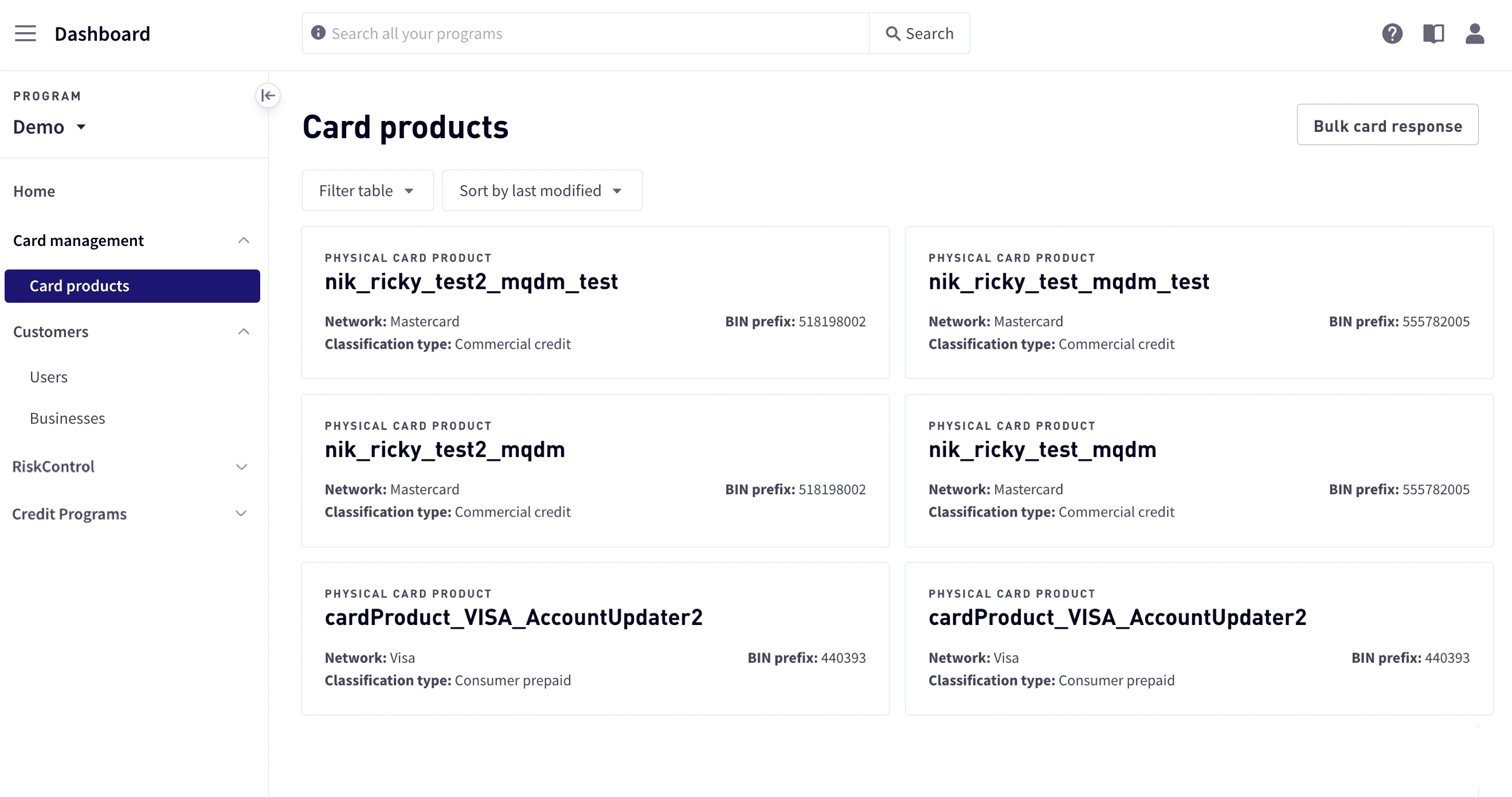
To manage card products, log into the [Marqeta Dashboard](https://app.marqeta.com/), select **Dashboard** in the upper-left corner, then select **Card Management > Card products** in the sidebar. For more on accessing the Marqeta Dashboard, see [Accessing the Marqeta Dashboard](/developer-guides/dashboard-overview-and-quick-start/#_access_the_marqeta_dashboard).
How to…
* View a list of card products
* View card product details
* Manually create a card
* Create cards in bulk
Viewing a list of card products
To view a list of card products, go to **Dashboard > Card management > Card products**. The current card products are displayed with summary information, including the network, classification type, and BIN prefix.
Viewing card product details
To view a list of card products:
Select **Dashboard** in the upper-left corner, then select **Card Management > Card products** in the sidebar.
Select the card product to view. Detailed information includes card product information and information on product velocity and authorization controls.
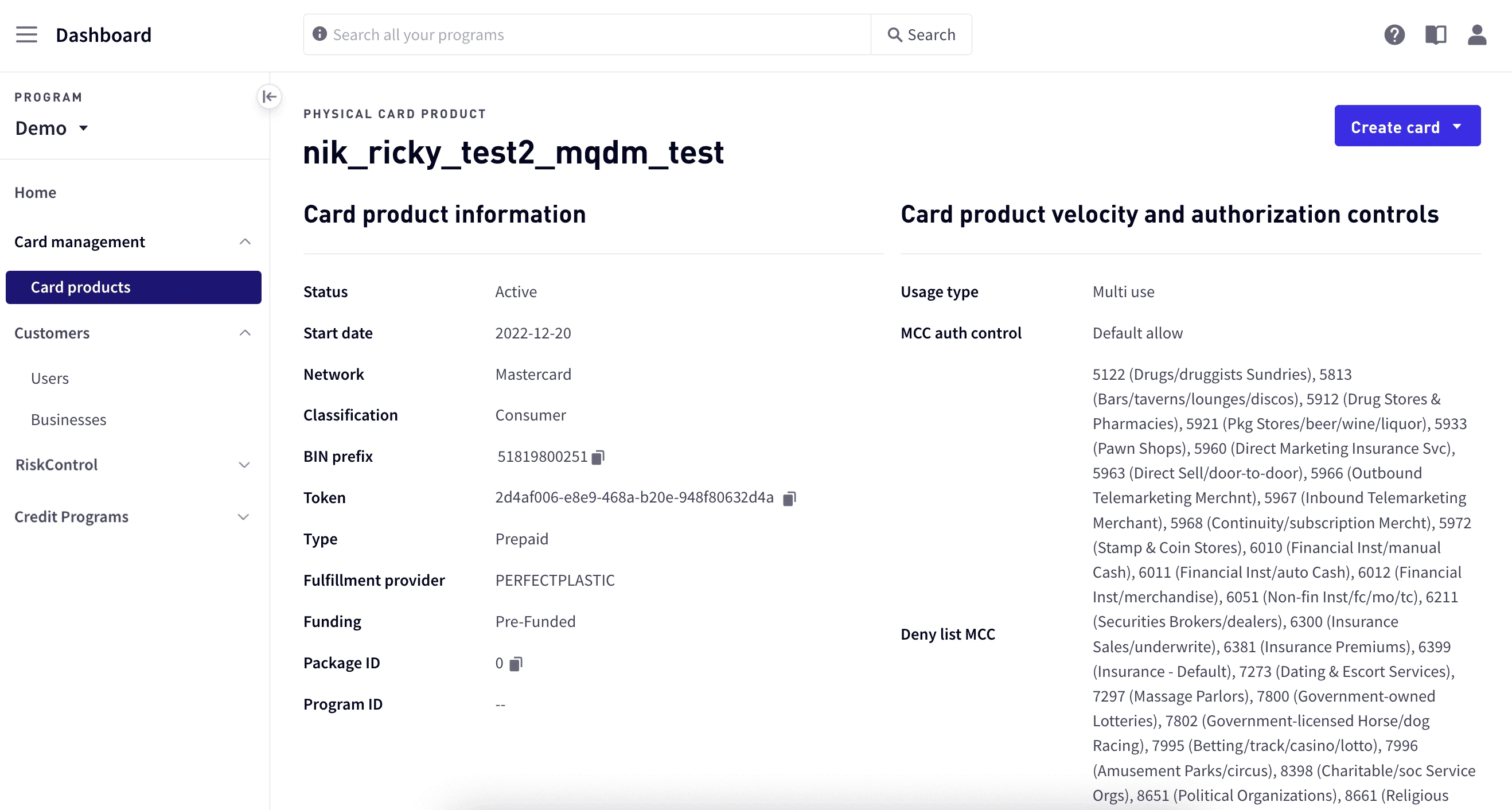 | Field | Description |
| -------------------- | ------------------------------------------------------------------- |
| Start Date | The start date of the card product. |
| Network | The network associated with the card product. |
| Classification | The classification of the card product: consumer or commercial. |
| BIN Prefix | The prefix of the bank identification number (BIN). |
| Token | The card product identifier. |
| Type | The type of card product: debit, credit, or prepaid. |
| Fulfillment Provider | The fulfillment provider: `PERFECTPLASTIC`, `ARROWEYE`, or `IDEMIA` |
| Funding | The type of funding, such as prefunded. |
| Package ID | The identifier for the package. |
| Program ID | The identifier for the program. |
| Field | Description |
| -------------------- | ------------------------------------------------------------------- |
| Start Date | The start date of the card product. |
| Network | The network associated with the card product. |
| Classification | The classification of the card product: consumer or commercial. |
| BIN Prefix | The prefix of the bank identification number (BIN). |
| Token | The card product identifier. |
| Type | The type of card product: debit, credit, or prepaid. |
| Fulfillment Provider | The fulfillment provider: `PERFECTPLASTIC`, `ARROWEYE`, or `IDEMIA` |
| Funding | The type of funding, such as prefunded. |
| Package ID | The identifier for the package. |
| Program ID | The identifier for the program. |
Card product velocity and authorization controls
| Field | Description |
| ---------------- | ---------------------------------------------------------------------------------------------- |
| Usage type | How the card is used: Multi-use or single-use. |
| MCC auth control | Controls the expiration of authorizations and automatic increases to the authorization amount. |
| Deny list MCC | Merchant category codes for merchant types added to the deny list. |
| Velocity control | Velocity controls applied to the card. |
Creating a card
You can manually create a card or create cards in bulk by uploading a file that contains the information about the cards to create. When you create a card, a card is created from a card product. When you manually create a card, you will create a single card and will need to enter the details. For bulk card creation, the details are entered into a file that can be uploaded to create multiple cards from the card program.
Manually creating a card
When you manually create a card, a new card is issued from the currently selected card product. To manually create a card:
Select **Dashboard** in the upper-left corner, select **Card management > Card products**, and then select a card product.
In the upper-right corner, select **Create card > Manual create card**.
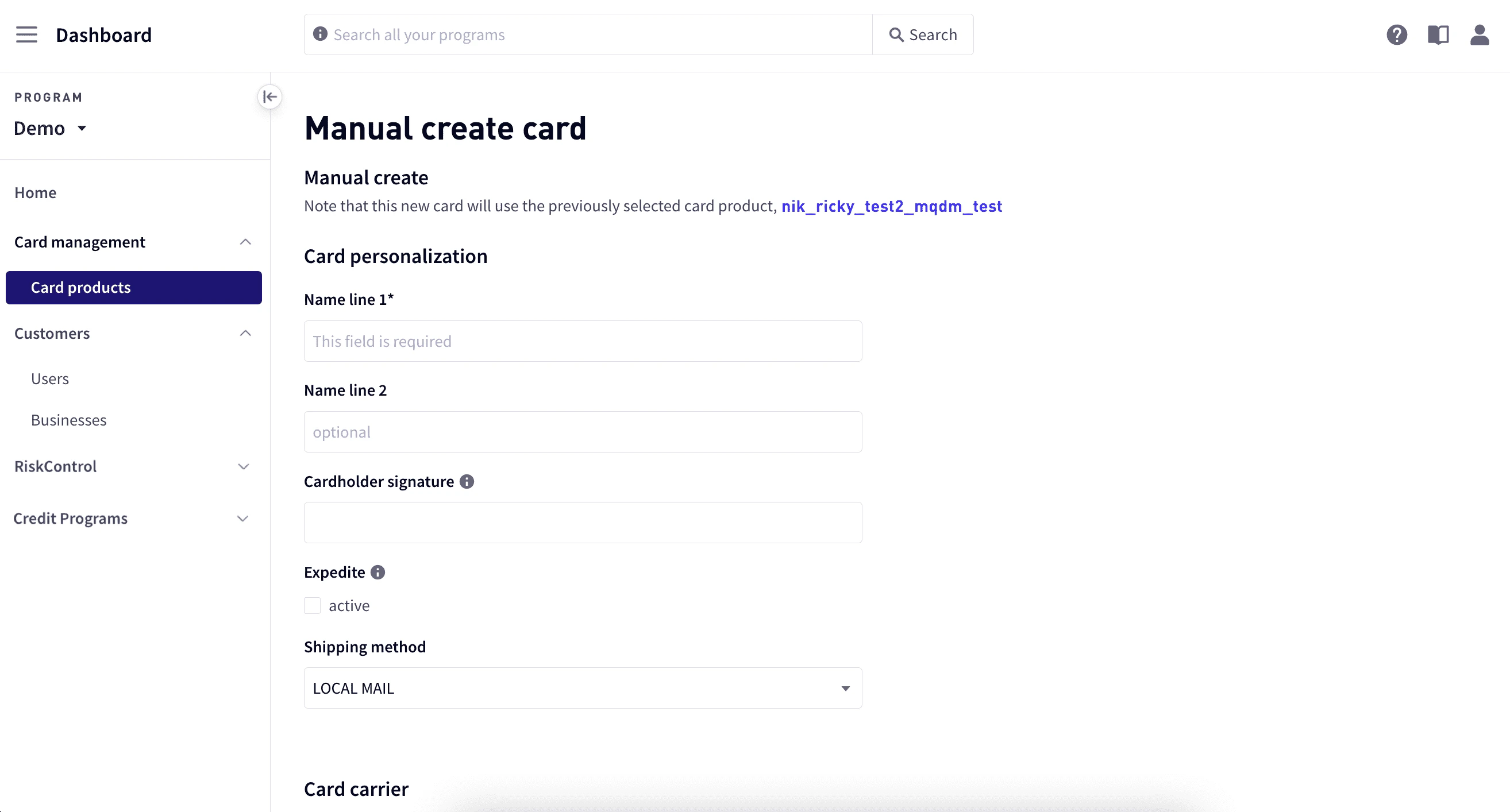 In **Manual create card**, enter the details for the card.
| Name line 1 | Name for card personalization. |
| -------------------- | ------------------------------------------------------------------------------------------------------------------------------------------------------------------------------------------------------------------------------------------------------------------------- |
| Name line 2 | Additional name information, if necessary. |
| Cardholder signature | A PNG image of the cardholder’s signature. |
| Expedite | Indicated whether to expedite the manufacturing time at the provider’s site. Shipping will not be expedited. |
| Shipping method | The card shipping method: LOCAL MAIL, TWO DAY, OVERNIGHT, or INTERNATIONAL |
| Card carrier | Select **+ Add card carrier** to open the popup window. Enter the logo file name, a message line, and for Carrier return window, specify a PNG image to display in the return address window of envelopes used to send cards to cardholders. Select **Add card carrier**. |
| Return address | Select **+ Add address** to open the popup window. Enter the address information, and select **Add address**. |
| Shipping address | Name and address where card is to be shipped. |
| Card user name | First and last name of the card user. |
| Deny list MCCs | Merchant category codes (MCCs) to deny. To add additional MCCs, select **+ More MCCs**. |
| Usage type | How the card is to be used: Multi-use or single-use. |
| Velocity control | Any amount and usage controls for a given time interval within the preconfigured controls. To add an additional control, select **+ Add velocity control** and enter the control details. |
Select **Create card**.
In **Manual create card**, enter the details for the card.
| Name line 1 | Name for card personalization. |
| -------------------- | ------------------------------------------------------------------------------------------------------------------------------------------------------------------------------------------------------------------------------------------------------------------------- |
| Name line 2 | Additional name information, if necessary. |
| Cardholder signature | A PNG image of the cardholder’s signature. |
| Expedite | Indicated whether to expedite the manufacturing time at the provider’s site. Shipping will not be expedited. |
| Shipping method | The card shipping method: LOCAL MAIL, TWO DAY, OVERNIGHT, or INTERNATIONAL |
| Card carrier | Select **+ Add card carrier** to open the popup window. Enter the logo file name, a message line, and for Carrier return window, specify a PNG image to display in the return address window of envelopes used to send cards to cardholders. Select **Add card carrier**. |
| Return address | Select **+ Add address** to open the popup window. Enter the address information, and select **Add address**. |
| Shipping address | Name and address where card is to be shipped. |
| Card user name | First and last name of the card user. |
| Deny list MCCs | Merchant category codes (MCCs) to deny. To add additional MCCs, select **+ More MCCs**. |
| Usage type | How the card is to be used: Multi-use or single-use. |
| Velocity control | Any amount and usage controls for a given time interval within the preconfigured controls. To add an additional control, select **+ Add velocity control** and enter the control details. |
Select **Create card**.
Creating cards in bulk
To create cards in bulk:
* Download the template.
* Create the bulk upload file.
* Create the object rows.
* Upload the file.
* View the response report.
Each of these steps is described in detail in the following sections.
Download the template
To download the template:
Select **Dashboard** in the upper-left corner, select **Card management > Card products**, and then select a card product.
In the upper-right corner, select **Create card > Bulk create cards**.
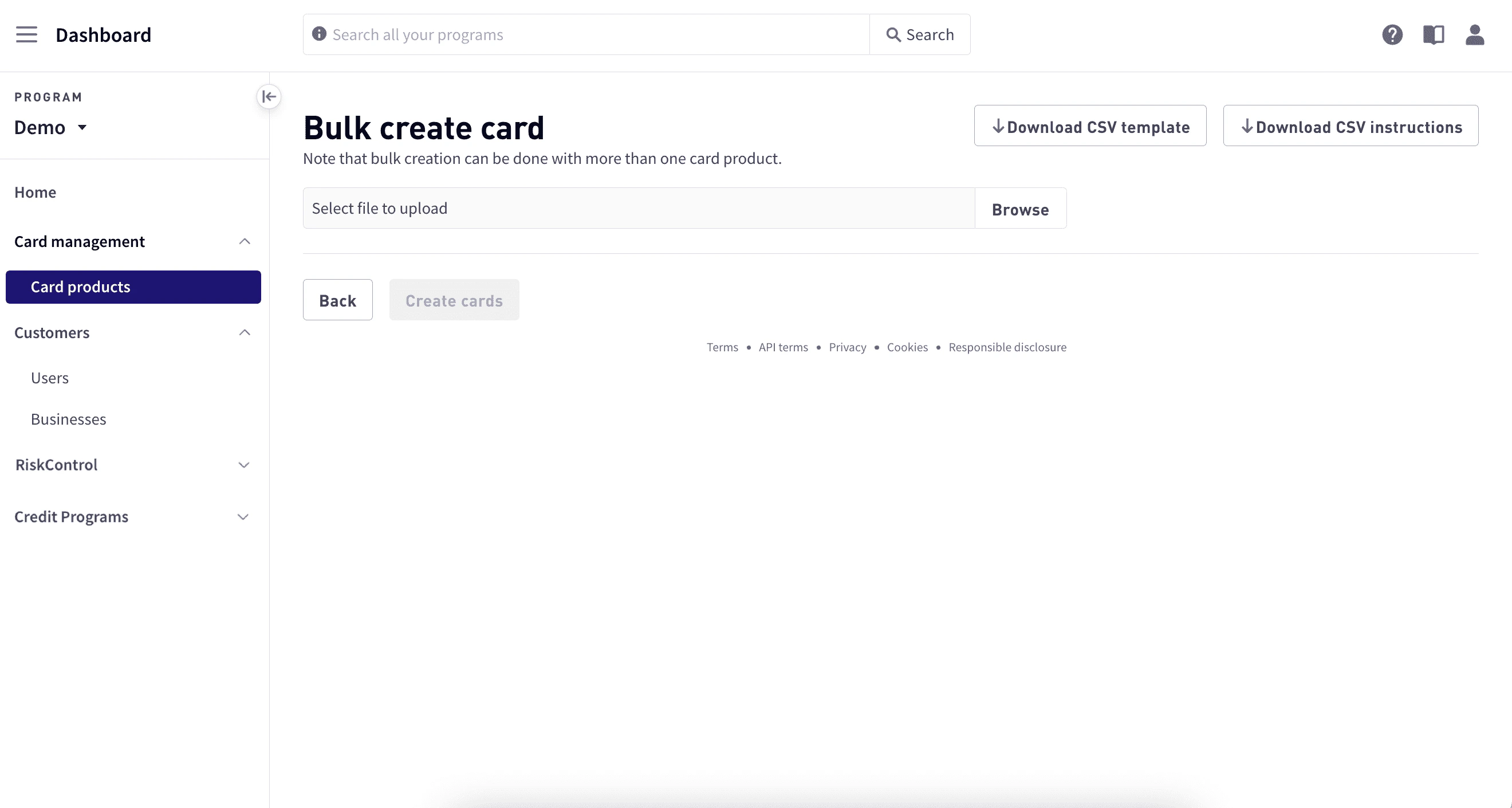 In **Bulk create cards**, select **Download CSV template** in the upper-right corner.
Create the bulk upload file
Using the template, create and populate your upload file. The file must conform to the following requirements:
| Requirement | Description |
| -------------------- | -------------------------------------------------------------------------------------------------------------------------------------------------------------------------------------------------------------------------------------------------------- |
| File format and size | The bulk upload file must be in .csv format and not exceed 10 MB in size. |
| Header row | The first row of the CSV file must begin with `HEADERS`, followed by a comma-separated list of the field names you want to include for each record in the file. For example:
`"HEADERS, ApplyToUser, UserToken, UserFirstName, UserLastName"` |
| Comments row | The `COMMENTS` row of the CSV file is ignored—these descriptions are provided to help you populate the template. |
| Object rows | Each row after the `COMMENTS` row represents a new or updated object on the Marqeta platform. |
Create the object rows
To create a new object, begin a new row in the CSV file after the Comments row with the keyword `CREATE`. To update an existing object, begin the row in the CSV file with the keyword `UPDATE`.
The `CREATE` action represents a `POST` request to the Core API of the Marqeta platform, while the `UPDATE` action represents a `PUT` request.
Follow either action with a comma-separated list of values that matches the fields you included in the `HEADERS` row, such as `CREATE, true, myUserToken, John, Smith`.
For each object row of the CSV file, you must specify whether you are creating or updating a user, card, or funding request.
* For rows that create or update a user, set `ApplyToUser` to `true`.
* For rows that create or update a card, set `ApplyToCard` to `true`.
* For rows that create a funding request, set `ApplyToFunds` to `true`.
**Warning**\
You can create a new funding request, but you cannot update an existing request.
When creating an object, you must include one of the following field names in the `HEADERS` row with the appropriate value for each record:
* To create a User object – no required field.
* To create a Card object – `CardProductToken`.
* To create a Funding Request object – `FundsAmount`.
Upload the file
To upload the bulk file:
Select **Dashboard** in the upper-left corner, select **Card management > Card products**, and then select a card product.
In the upper-right corner, select **Create card > Bulk create cards**.
In **Bulk create cards**, select **Browse** and locate the CSV file.
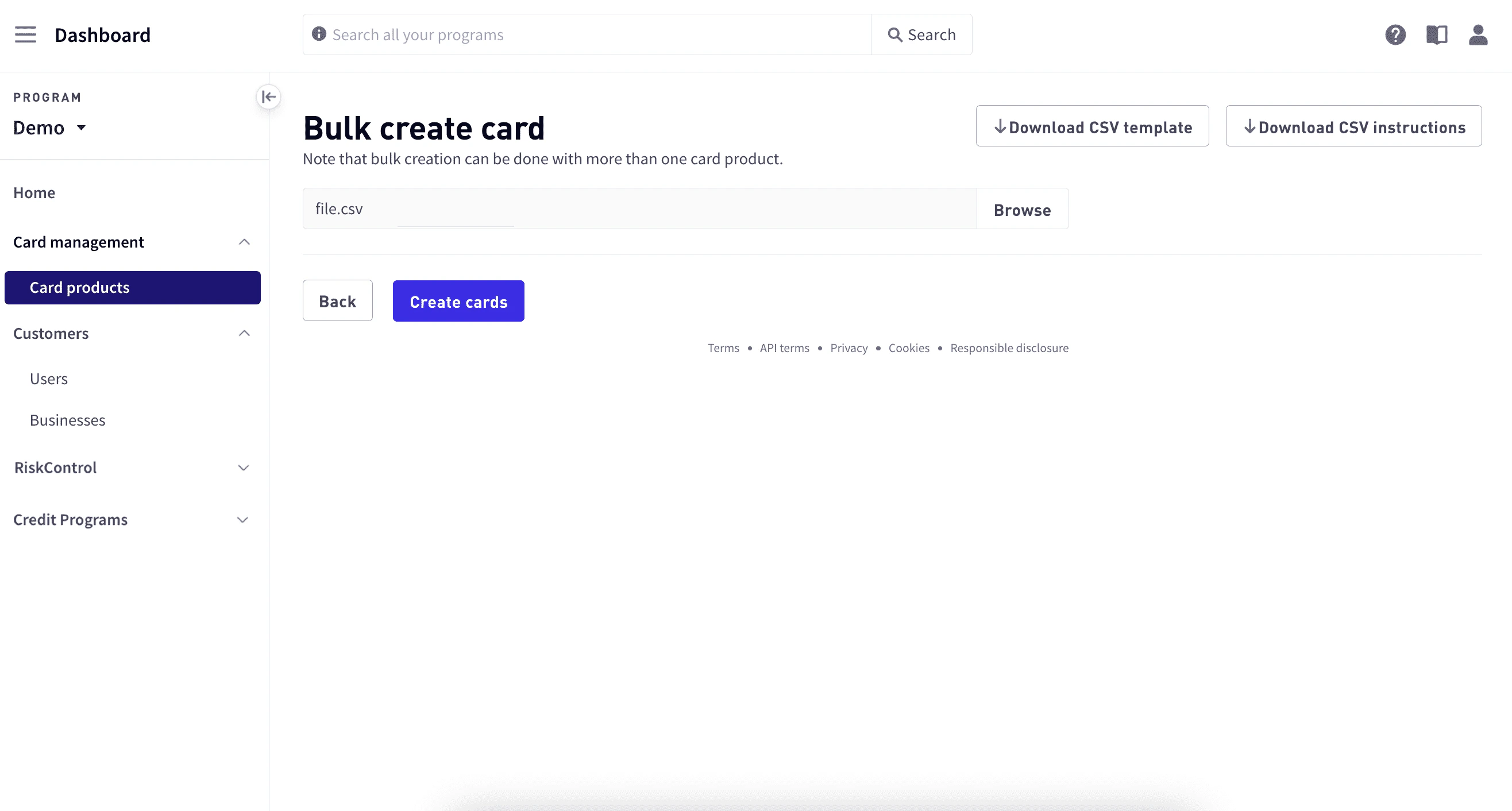 Select **Create cards**.
View the response report
After the Marqeta platform processes your bulk upload file, it generates a response report containing your complete request along with response data for each record in the file. Depending on the size of the upload file, the report may take several minutes to generate.
To view the report:
In **Card products**, select **Bulk card response** in the upper-right corner.
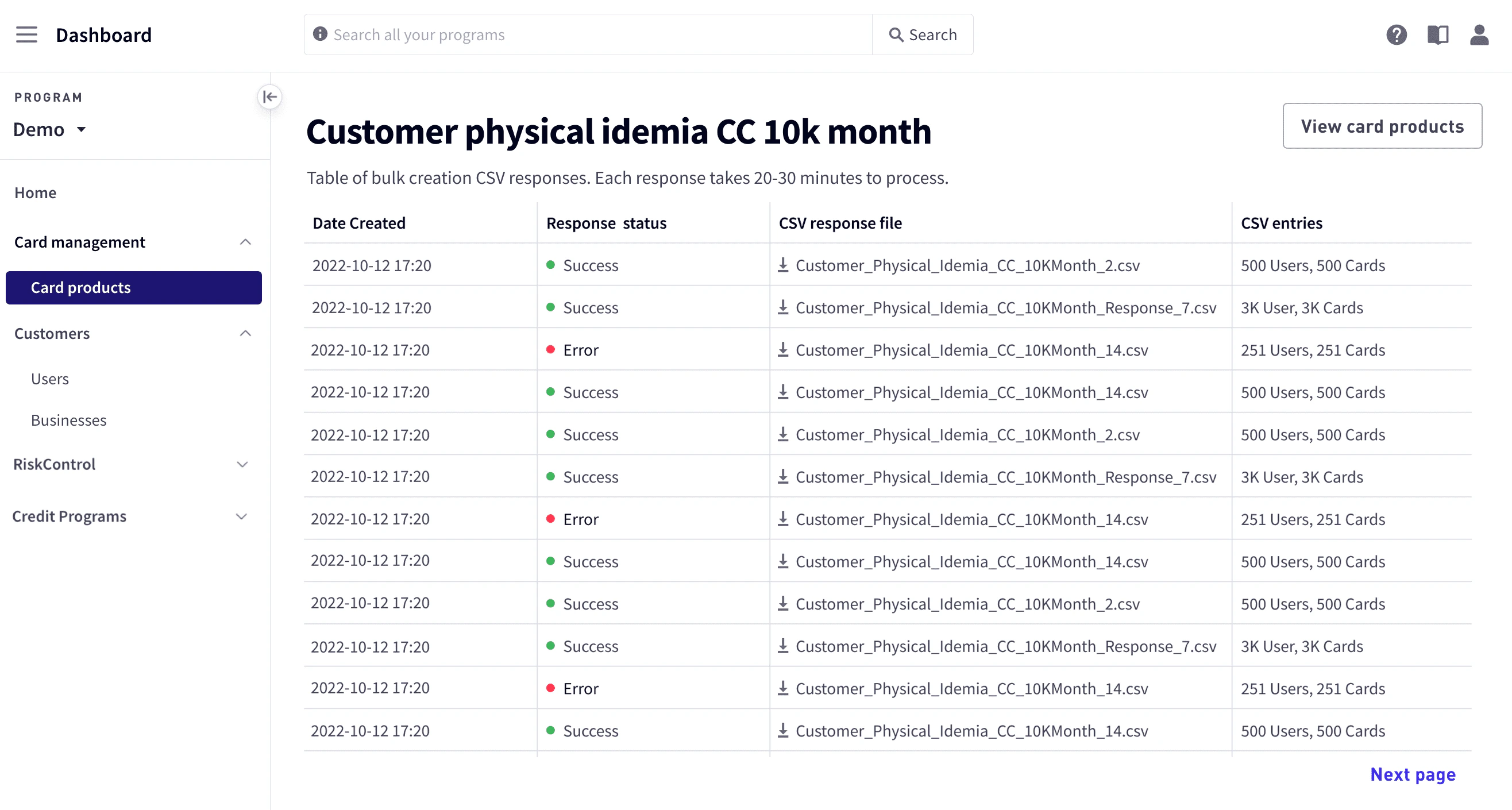 If you do not see the report for the upload file, check back after 20 to 30 minutes.
Recovering from an error
If any of the object rows in your bulk upload file generate an error during processing, the Marqeta platform includes the error in the response report. For each object, a description of the error is returned in one of the following fields:
* `UserMessage`, if `ApplyToUser` is `true` in the request.
* `CardMessage`, if `ApplyToCard` is `true` in the request.
* `FundsMessage`, if `ApplyToFunds` is `true` in the request.
To correct your bulk upload file, update each object row of the response report file based on the errors returned by the Marqeta platform. When ready, upload the response report file.
**Warning**\
Do not modify the filename or other elements of the response report file.
Do not re-upload the original bulk upload file.
## Related topics
- [Managing Customers in the Marqeta Dashboard](/docs/developer-guides/customers-dashboard.md)
- [Managing User Profiles in the Marqeta Dashboard](/docs/developer-guides/user-profiles-dashboard.md)
- [Dashboard Overview and Quick Start](/docs/developer-guides/dashboard-overview-and-quick-start.md)
- [Disputes in the Marqeta Dashboard](/docs/developer-guides/disputes-dashboard.md)
- [Managing Mastercard Disputes](/docs/developer-guides/managing-mastercard-disputes.md)