> ## Documentation Index
> Fetch the complete documentation index at: https://www.marqeta.com/docs/llms.txt
> Use this file to discover all available pages before exploring further.
# Disputes in the Marqeta Dashboard
> Disputes in the Marqeta Dashboard enables you to manage dispute cases.
Marqeta is migrating dispute management to the new Disputes portal. To learn about the Disputes portal, see [About the Disputes Portal](/developer-guides/about-disputes-portal).
**Note**\
This feature is currently in beta and subject to change. It also requires additional activation steps. To learn more about the Beta program for this feature and about activating it for your program, contact your Marqeta representative.
Use Disputes in the Marqeta Dashboard to:
* Create a dispute.
* Manage dispute progress.
* Transition a dispute.
* Create disputes in bulk (Visa only).
For general information on disputes, the dispute lifecycle, chargebacks, and best practices, see [About Disputes](/developer-guides/about-disputes/).
The basics
To manage disputes, log into the Marqeta Dashboard, select **Dashboard** in the upper-left corner, and then select **RiskControl > Disputes** from the sidebar. For more on accessing the Marqeta Dashboard, see [Accessing the Marqeta Dashboard](/developer-guides/dashboard-overview-and-quick-start/#_access_the_marqeta_dashboard).
How to…
* View current disputes
* View dispute details
* Create a dispute case
* Create dispute cases in bulk
* Manage dispute cases
* View the chargeback report
* Report fraud
Viewing current disputes
To view the current disputes, select **Dashboard** in the upper-left corner, and then select **RiskControl > Disputes** from the sidebar. The current disputes are displayed in the **Dispute queue** tab.
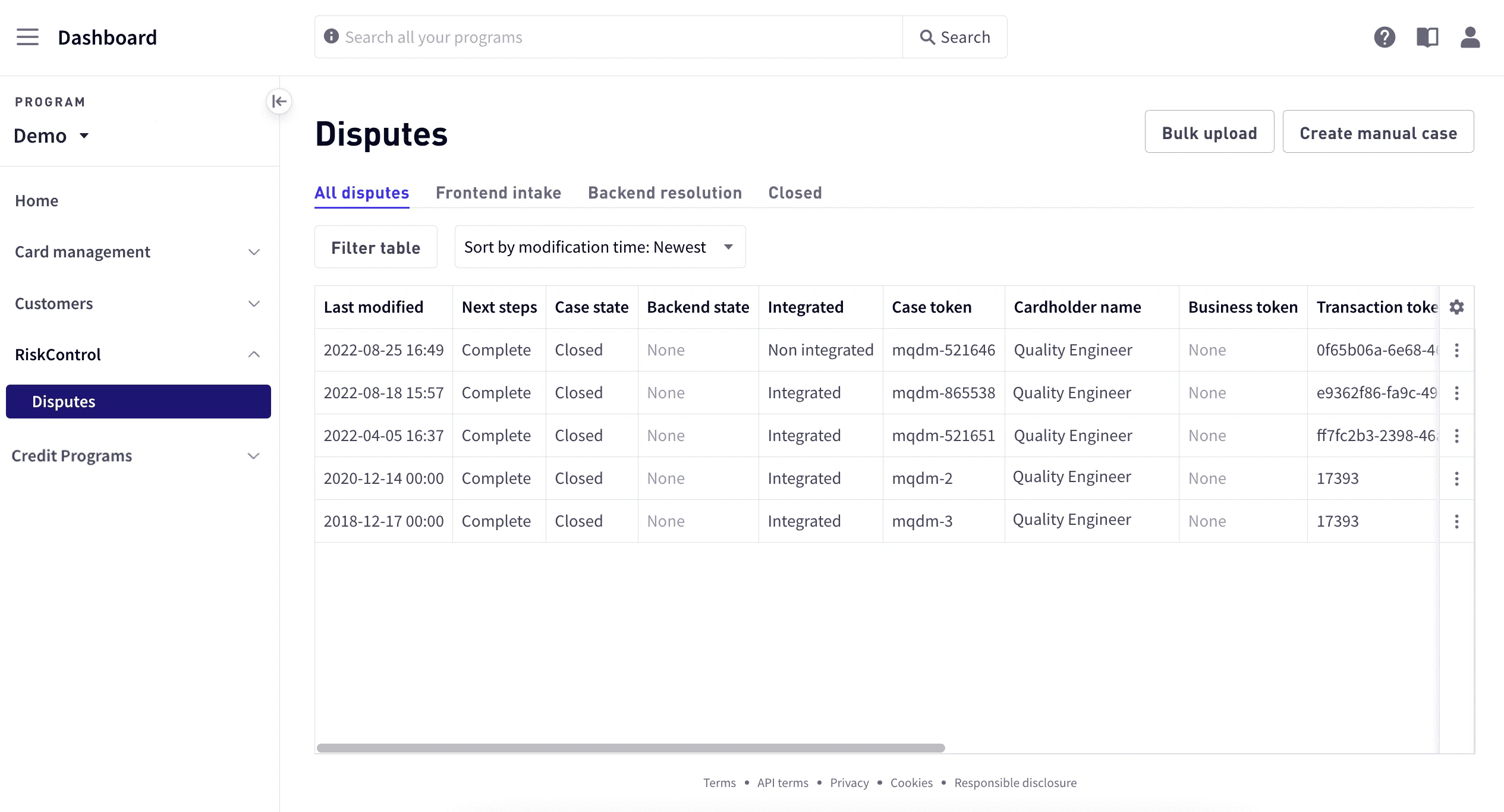 Default columns are displayed. To modify the displayed columns, see [Setting the columns to display and column order](#_setting_the_columns_to_display_and_column_order).
| Column Name | Description |
| ------------------- | ------------------------------------------------------------------------------------------------------------------------------------------------------------------------------------------------------------------------------------------------------------------------------------------------------------------------------------------------------------------------------------------------------------------------------- |
| Last modified | Date and time when the dispute case was most recently modified. |
| Next steps | Action required to move the dispute to the next state. |
| Case state | Current state of the dispute case: Open, Open action required, Ready, Initiated, or Closed. |
| Integrated | Indicates whether the dispute is integrated or non-integrated with the card network.
Default columns are displayed. To modify the displayed columns, see [Setting the columns to display and column order](#_setting_the_columns_to_display_and_column_order).
| Column Name | Description |
| ------------------- | ------------------------------------------------------------------------------------------------------------------------------------------------------------------------------------------------------------------------------------------------------------------------------------------------------------------------------------------------------------------------------------------------------------------------------- |
| Last modified | Date and time when the dispute case was most recently modified. |
| Next steps | Action required to move the dispute to the next state. |
| Case state | Current state of the dispute case: Open, Open action required, Ready, Initiated, or Closed. |
| Integrated | Indicates whether the dispute is integrated or non-integrated with the card network.
- An **integrated** dispute is directly connected with the card network and is automatically refreshed as the card network makes updates.
- A **non-integrated** dispute is not directly connected with the card network and requires manual handling, such as checking the card network portal and adding manual entries. |
| Case token | Unique identifier of the dispute case. |
| Cardholder name | Name of the cardholder who is disputing the transaction. |
| Business token | Unique identifier of the business. |
| Transaction token | Original transaction token. This must be the token from a cleared (settled) transaction, not an authorization token. |
| Dispute reason | Reason for the current dispute state. |
| Dispute amount | Amount disputed. If the cardholder has disputed only a portion of the original transaction amount, this will be a partial amount. |
| Next actor | Next actor whose action is required to move the dispute to the next state. |
| Days to act | Remaining days for a customer to act before losing the capability to act or certain rights related to the transaction. |
| Network case status | Dispute status of the current network. |
| Network case number | Reference number provided by the card network (the card network dispute ID). |
| Case assignee | User assigned to the case. |
| Currency | Currency of the disputed amount. |
| Time created | Timestamp of the original transaction. This value is not required to process a dispute, but could prove vital for file grooming and manual dispute review. |
Searching for users, businesses, cards, or disputes
Use the Search bar at the top of the view area to search for users, businesses, cards, or dispute cases. You can search for users by account number or user token. For businesses, cards, and dispute cases, search by token.
To use the Search bar:
Enter the token in the search box and select **Search**.
 Select the item in the search result below the search box. The requested entity opens in the appropriate area of the Dashboard.
Filtering disputes
You can filter disputes by case state, transaction or cardholder token, dispute amount, case assignee, dispute reason, reason code, actor, or whether a dispute is integrated. You can sort by created time or time modified.
To filter disputes:
In **RiskControl > Disputes**, select **Filter table**.
Enter the values you want to use for the filter.
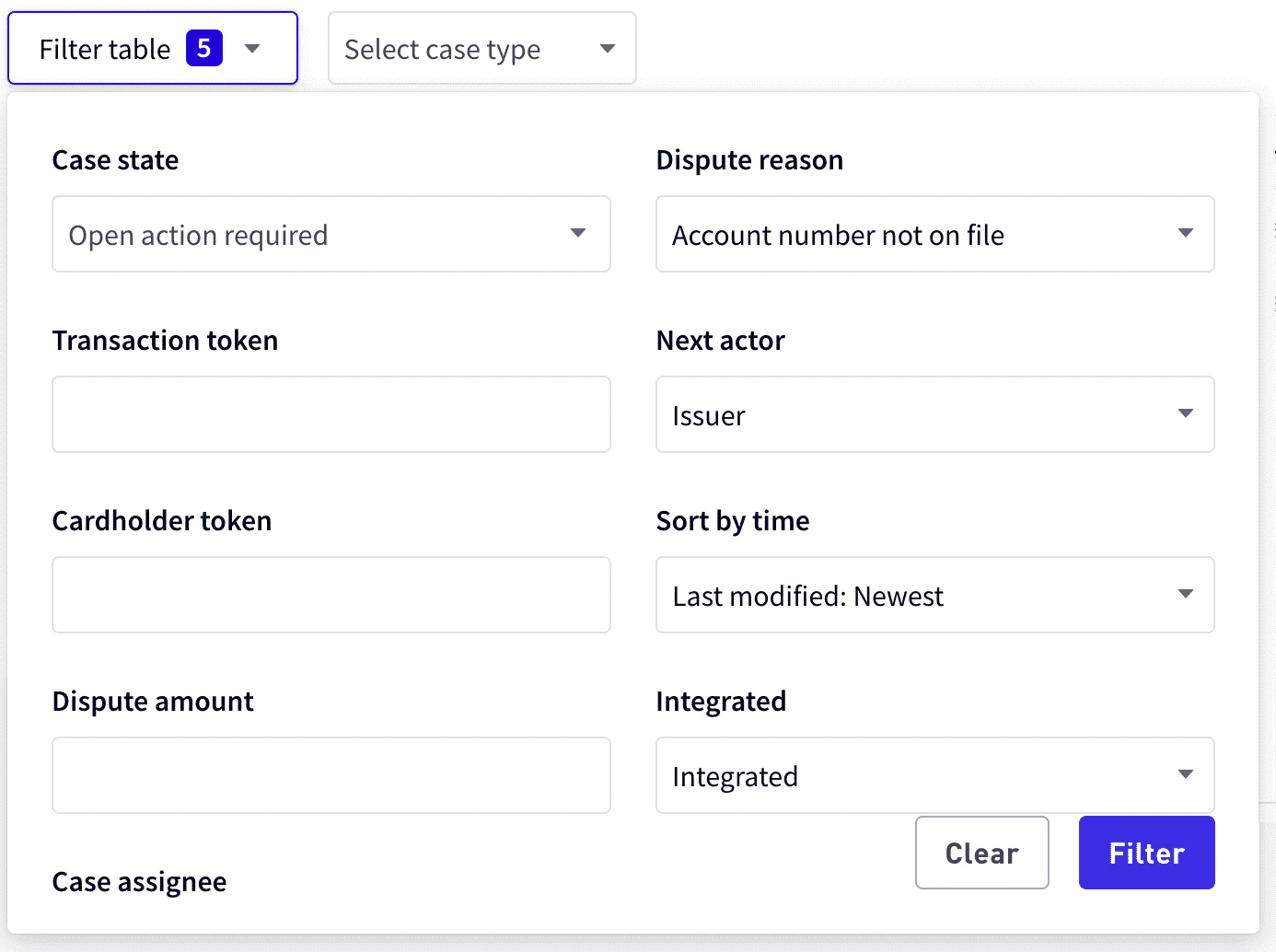 Select **Filter**.
You can also filter disputes by where they are in the dispute lifecycle by selecting which disputes to view from the dropdown box to the right of **Filter table** box:
**All disputes** – All current disputes.
**Frontend intake** – Disputes in the Ready, Open, or Open action required state.
**Backend resolution** – Disputes that have been sent to the card network.
**Closed** – Disputes that are resolved and closed.
Select **Filter**.
You can also filter disputes by where they are in the dispute lifecycle by selecting which disputes to view from the dropdown box to the right of **Filter table** box:
**All disputes** – All current disputes.
**Frontend intake** – Disputes in the Ready, Open, or Open action required state.
**Backend resolution** – Disputes that have been sent to the card network.
**Closed** – Disputes that are resolved and closed.
Setting the columns to display and column order
To customize the column display:
In **Dashboard > RiskControl > Disputes**, select the gear icon in the upper-right corner of the list, and choose **Modify columns**.
In **Customize Columns**, select the columns you want to display.
To change the display order, select and hold the row and move it to the new position.
Choose **Save**.
To reset the column display, select the **Reset table to default** option from the gear icon.
Viewing dispute details
In Dispute details, you can update the dispute details, view cardholder information, view a transition history, or mark the dispute case as ready. For details on how to do this, see [Managing Dispute Cases](#_managing_dispute_cases).
**Note**\
The specific details displayed vary depending on the current state of the dispute case.
To view dispute details:
Go to **Dashboard > RiskControl > Disputes** and select the dispute, or select **See details** from the vertical ellipsis icon at the right of the row. Details are displayed in the **Submission details** tab.
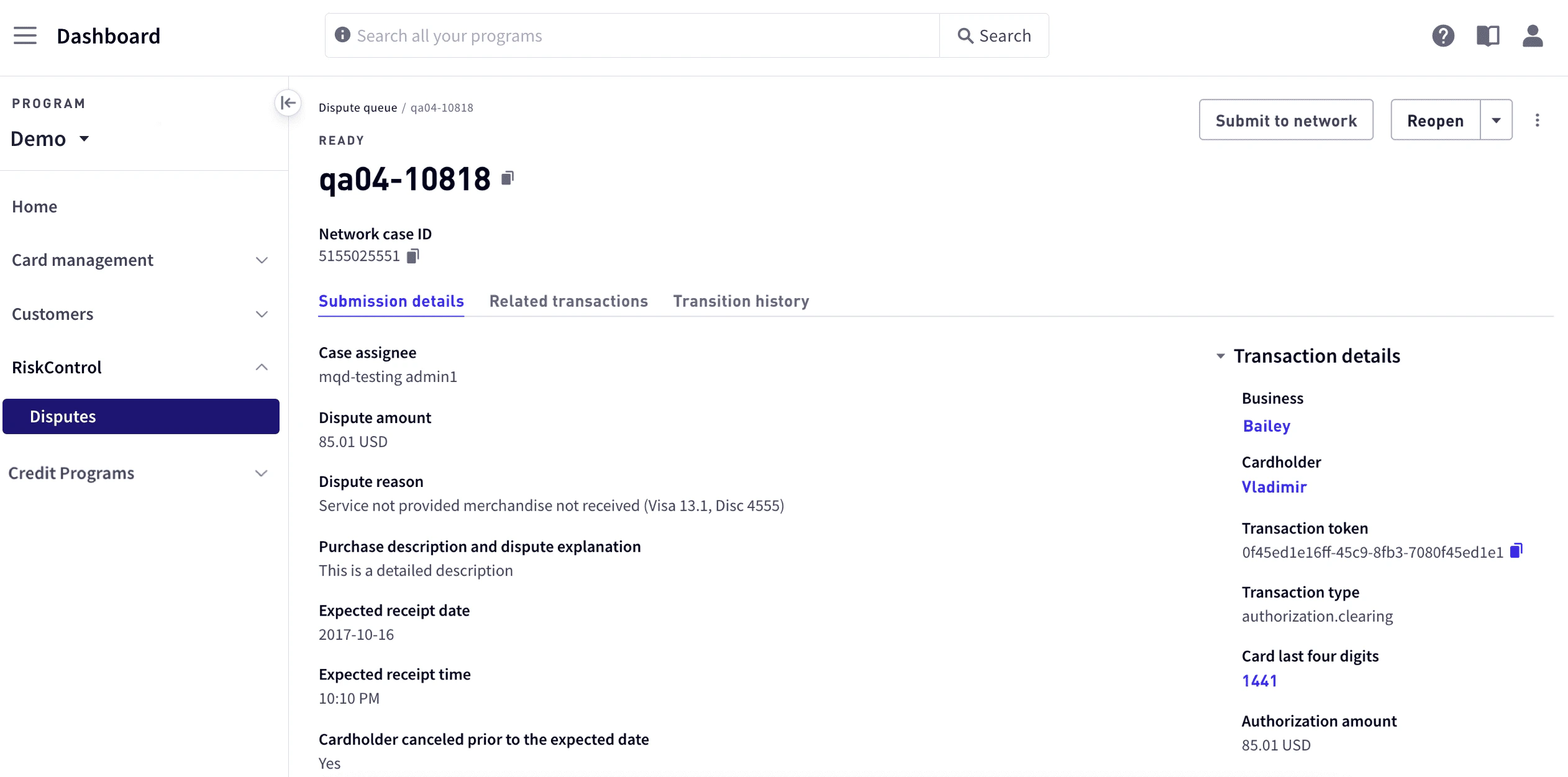 Dispute details include:
| Field | Description |
| ---------------------------------------------- | --------------------------------------------------------------------------------------------------------------------------------- |
| Network case ID | Reference number provided by the card network. |
| Next actor | The next actor whose action is required to move the dispute to the next state. |
| Days to act | The remaining days for a customer to act before losing the capability to act or certain rights related to the transaction. |
| Network case status | For submitted cases, the current state of the dispute on the card network. |
| Case assignee | The user assigned to the case. |
| Dispute amount | Amount disputed. If the cardholder has disputed only a portion of the original transaction amount, this will be a partial amount. |
| Dispute reason | The reason for the dispute. |
| Purchase description and dispute explanation | Detailed description of the purchase and explanation for the dispute. |
| Expected receipt date | The expected receipt date. |
| Expected receipt time | The expected receipt time. |
| Cardholder canceled prior to the expected date | Indicates whether the cardholder canceled before the expected date. |
| Cancellation Date | The cancellation date. |
| Acquirer reference number (ARN) | The acquirer reference number. |
| Label | Additional information related to resolving the dispute. |
| Notes | Any useful notes about the transaction. |
| Transaction details | Any clarifying details about the transaction. |
| Merchant details | Details of the merchant involved in the transaction. |
To see detailed information about the transaction including cardholder information, select the arrow in front of **Transaction details** to the right of the view area.
To view point-of-sale details, select the arrow in front of **Point of Sale details** in the lower right.
To view related transactions:
Go to **Dashboard > RiskControl > Disputes**.
Select the dispute or select **See details** from the vertical ellipsis icon at the right of the row.
Select the **Related transactions** tab.
Dispute details include:
| Field | Description |
| ---------------------------------------------- | --------------------------------------------------------------------------------------------------------------------------------- |
| Network case ID | Reference number provided by the card network. |
| Next actor | The next actor whose action is required to move the dispute to the next state. |
| Days to act | The remaining days for a customer to act before losing the capability to act or certain rights related to the transaction. |
| Network case status | For submitted cases, the current state of the dispute on the card network. |
| Case assignee | The user assigned to the case. |
| Dispute amount | Amount disputed. If the cardholder has disputed only a portion of the original transaction amount, this will be a partial amount. |
| Dispute reason | The reason for the dispute. |
| Purchase description and dispute explanation | Detailed description of the purchase and explanation for the dispute. |
| Expected receipt date | The expected receipt date. |
| Expected receipt time | The expected receipt time. |
| Cardholder canceled prior to the expected date | Indicates whether the cardholder canceled before the expected date. |
| Cancellation Date | The cancellation date. |
| Acquirer reference number (ARN) | The acquirer reference number. |
| Label | Additional information related to resolving the dispute. |
| Notes | Any useful notes about the transaction. |
| Transaction details | Any clarifying details about the transaction. |
| Merchant details | Details of the merchant involved in the transaction. |
To see detailed information about the transaction including cardholder information, select the arrow in front of **Transaction details** to the right of the view area.
To view point-of-sale details, select the arrow in front of **Point of Sale details** in the lower right.
To view related transactions:
Go to **Dashboard > RiskControl > Disputes**.
Select the dispute or select **See details** from the vertical ellipsis icon at the right of the row.
Select the **Related transactions** tab.
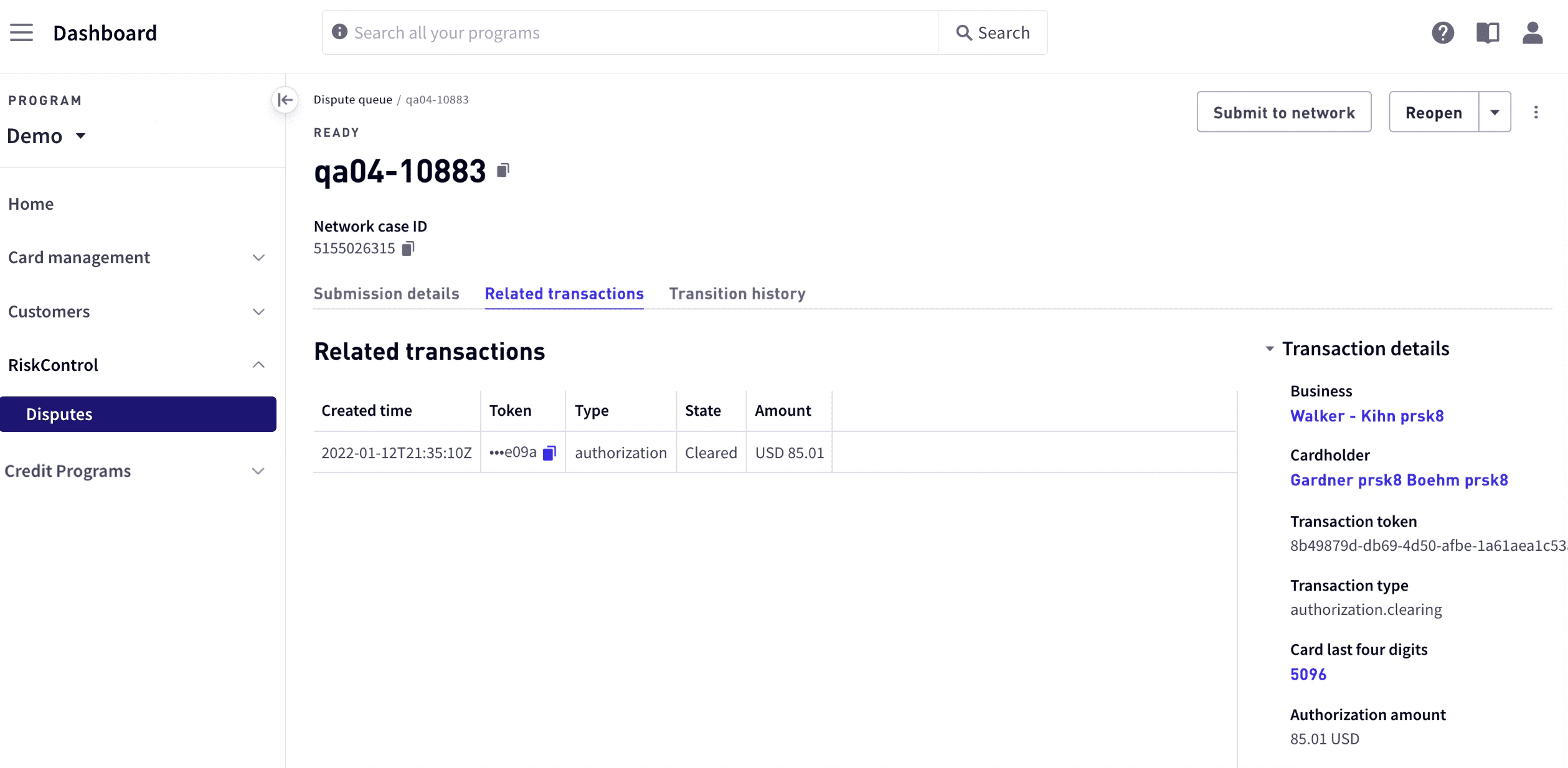
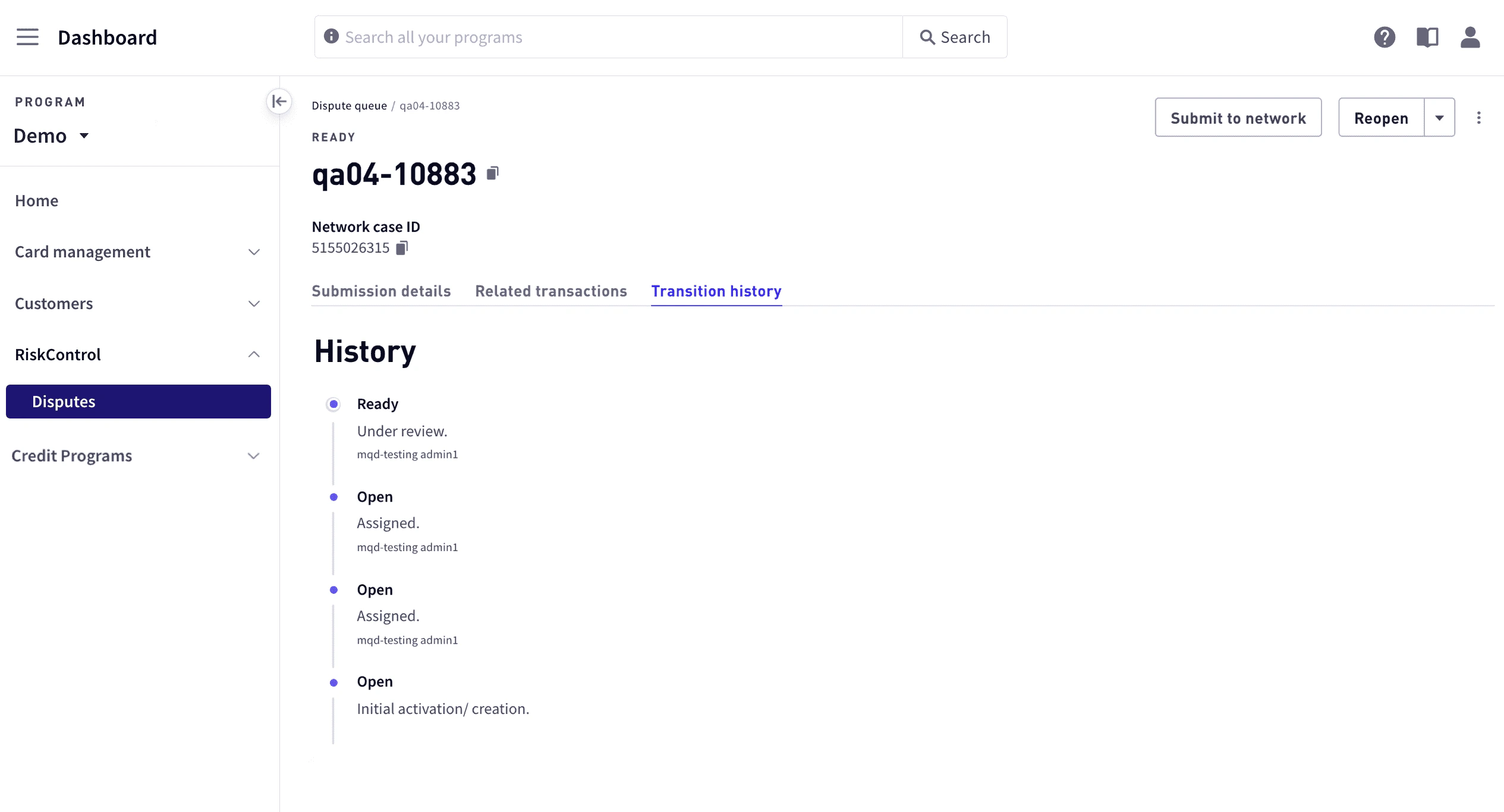
Viewing dispute case transition history
To view a transition history:
In the sidebar, select **RiskControl > Disputes**.
Select the dispute or select **See details** from the vertical ellipsis icon at the right of the row.
Select the **Transition history** tab.
Creating a dispute case
Transactions can be disputed if they are in either a cleared or completion state. When you create a dispute case, you will need to provide dispute details and upload required documents. You can create a dispute case from the Users list or from the Disputes queue.
To create a dispute from the Users list:
From the sidebar, select **Customers > Users**, then select the user. To search for a user, select **Filter**.
Do either of the following:
* Select the **Transactions** tab. To search for the transaction, select **Filter**.
* Select the **Cards** tab, select the card from the list of cards, and then select the **Card transactions** tab. To search for the transaction, select **Filter**.
Select the vertical ellipsis at the far right of the row and select **Dispute**.
In the **Create dispute** work area, select either **Full transaction amount** if the entire amount is being disputed, or select **Other amount** and enter the amount being disputed.
For **Cardholder contact date**, enter the date and time when the cardholder made first contact disputing this transaction.
**Note**\
This `datetime` is used to determine when provisional credit must be granted. For details on granting provisional credit, see [Granting provisional credit](/developer-guides/disputes-dashboard/#_granting_provisional_credit). For information on the provisional credit process, see [Managing provisional credits](/developer-guides/managing-visa-disputes/#_managing_provisional_credits).
For **Dispute reason**, select a dispute reason or enter a reason code. For a list, see [Dispute reasons and codes](#_dispute_reasons_and_codes).
Depending on the dispute reason, specify the details of the dispute. Specify the means of payment with sufficient transaction details to allow the merchant to locate the transaction.
In the **Notes** text box, enter any additional details.
Select **Create dispute**.
To continue with the case, select **Continue**. To return to Transactions or Card Transactions, select **Return to transactions**.
To create a new dispute from the Disputes queue:
From the sidebar, select **RiskControl > Disputes**.
Select **Create manual case** in the upper right corner, enter the token for the transaction you would like to dispute, and select **Continue**.
In the **Create dispute** work area, select either **Full transaction amount** if the entire amount is being disputed, or select **Other amount** and enter the amount being disputed.
For **Cardholder contact date**, enter the date and time when the cardholder made first contact disputing this transaction.
**Note**\
This `datetime` is used to determine when provisional credit must be granted. For details on granting provisional credit, see [Granting provisional credit](/developer-guides/disputes-dashboard/#_granting_provisional_credit). For information on the provisional credit process, see [Managing provisional credits](/developer-guides/managing-visa-disputes/#_managing_provisional_credits).
For **Dispute reason**, select a dispute reason or enter a reason code.
For a list, see [Dispute reasons and codes](#_dispute_reasons_and_codes).
Depending on the dispute reason, specify the details of the dispute. Specify the means of payment with sufficient transaction details to allow the merchant to locate the transaction.
In the **Notes** text box, enter any additional details.
Select **Create dispute**.
Creating dispute cases in bulk
With bulk uploads you can upload multiple cases using a bulk file in `.xlxs` format that contains the information for each case. Bulk uploads bypass the typical dispute creation process, moving the case state directly to the initiated state. Because records in a bulk file must conform to exact file formatting, using bulk uploads may require additional maintenance.
After dispute cases are successfully uploaded in a bulk file, each case can be managed using the procedures described in [Managing dispute cases](#_managing_dispute_cases).
**Note**\
Only Visa fraud and authentication disputes can be submitted in bulk. All other disputes must be individually created and submitted, as described in [Creating a dispute case](#_creating_a_dispute_case).
To submit dispute cases in bulk:
* Download the template.
* Create the bulk upload file.
* Create the object rows.
* Upload the file.
* View the failure report.
Each of these steps is described in detail in the following sections.
Download the template
To download the template:
In **Dashboard > RiskControl > Disputes**, select **Bulk upload**.
Under **.xlsx templates**, select **Chargeback**.
Create the bulk upload file
Using the template, create and populate your upload file. When naming your upload files, avoid special characters and spaces in the filename. Use unique filenames. You cannot upload the same file with the same name multiple times.
Include only Fraud and Authorization disputes in the file. For each dispute, include the clearing transaction token in the `TRANSACTION_TOKEN` field. All fields are required. Smaller files result in faster upload times. The file must include the following fields:
| Field | Description |
| ------------------------------- | ------------------------------------------------------------------------------------------------------------------------------------------------------------------------------------------------------------------------------------------------------------------------------------------------------------------ |
| TRANSACTION\_TOKEN | Original transaction token. This must be the token from a cleared (settled) transaction, not an authorization token. |
| CREATED\_AT | Timestamp of the original transaction. This is not required to process a dispute, but could prove vital for file grooming and manual dispute review. |
| DISPUTE\_AMOUNT | Amount disputed. If the cardholder wants to dispute only a portion of the original transaction amount, include the partial amount here along with a reason in the `DISPUTE_AMOUNT_CHANGE_REASON` column.
**Note:** Do not include any special characters such as a currency symbol.
Format: 00.00 |
| REASON\_CODE | Reason code, which can be one of the following, regardless of the card network:
`NOT_AUTHORIZED_CARD_PRESENT`,
`NOT_AUTHORIZED_CARD_ABSENT`,
`NO_AUTHORIZATION` |
| MERCHANT\_NAME | Name of the merchant. This may be useful for researching dispute details, and can be obtained from the authorization event type in the `card_acceptor` object of the Webhooks endpoint. |
| DISPUTE\_ACTION | The required action -- either `CHARGEBACK_CREDIT` or `CHARGEBACK_NO_CREDIT`. |
| DISPUTE\_AMOUNT\_CHANGE\_REASON | Note explaining the reason for disputing an amount less than the original transaction amount. If the disputed amount is less than the original transaction amount, this reason is required by the card network. |
| CHIP\_ON\_CARD | Indicate if a chip was present on the card. |
| PROGRAM\_SHORT\_CODE | The program short code. |
Upload the file
To upload the bulk file:
In **Dashboard > RiskControl > Disputes > Bulk upload**, select **Browse** and choose a bulk upload file that conforms to the `.xlxs` template.
Select **Upload**. The upload process may take several minutes.
If an **Unable to upload file** error message appears during the upload process, wait a few minutes and try again.
View the failure report
After the Marqeta platform processes your bulk upload file, it generates a failure report containing your complete request along with relevant data for each record in the file. Depending on the size of the upload file, the report may take several minutes to generate.
Completed files appear under Bulk upload history. After uploading a file, select **Refresh** periodically to see if your uploads have completed. Download the failure report to view any disputes that failed to upload. If the report file is empty, no failures have occurred for that upload.
To view a report:
In **Dashboard > RiskControl > Disputes**, select the **Bulk upload** tab.
Select the **Download report** link in the **Failure Report** column. If you do not see the link for the uploaded file, select **Refresh** and check back after 20 to 30 minutes.
Open the downloaded file. The filename is prefixed with `REJECTED-`, followed by the datetime of the upload, and concatenated to the upload filename, for example, `REJECTED-2021-01-19-192915_myuploadfilename`. The following information is returned in the `.xlxs` file for each transaction that failed from the uploaded bulk file:
| Field | Description |
| ------------------------------- | --------------------------------------------------------------------------------------------------------------------------------------------------------------------------------------------------------------- |
| TRANSACTION\_TOKEN | Original transaction token from a cleared (settled) transaction. |
| TRANSACTION\_ID | Transaction ID of the transaction being disputed. |
| CREATED\_AT | Timestamp of the original transaction. |
| REASON\_CODE | Reason code, which can be one of the following, regardless of the card network:
`NOT_AUTHORIZED_CARD_PRESENT`,
`NOT_AUTHORIZED_CARD_ABSENT`,
`NO_AUTHORIZATION` |
| DISPUTE\_AMOUNT | Amount disputed, which may be a portion of the original transaction amount. |
| DISPUTE\_AMOUNT\_CHANGE\_REASON | Note explaining the reason for disputing an amount less than the original transaction amount. If the disputed amount is less than the original transaction amount, this reason is required by the card network. |
| MEMO | Additional information that was provided in the upload file. |
| FAILURE\_REASON | The reason that this transaction failed to successfully load. |
Recovering from unsuccessful uploads
If any disputes have not successfully uploaded from the bulk file, either include these in a new upload file, ensuring that all required information is included and correctly formatted, or manually create the case as described in [Creating a dispute case](#_creating_a_dispute_case).
Managing dispute cases
After you have created a case, you need to provide any additional information required and move the case along the case timeline to the next case state until the case is resolved. The following are the case states from when the case is opened until it is closed:
| Open | The case has been created. |
| -------------------- | ----------------------------------------------------------------------------------------------------- |
| Open action required | The case has been created and requires action before it is ready to be submitted to the card network. |
| Ready | The case is ready to be submitted to the card network. |
| Initiated | The case has been submitted to the card network for a decision. |
| Closed | The case has been resolved and closed. |
The current state appears in the `State` column in the Disputes Queue.
Transitioning a dispute case
The following general steps allow you to enter all the required information, gather the required documents, and submit the case to the card network:
* Review for associated transactions (Visa only).
* Upload required documentation.
* Confirm case details and set the case to Ready.
* Submit the case to the card network.
* Close the case.
The following sections provide details for each step.
Review for associated transactions (Visa only)
The associated transaction table displays any transactions that the card network has listed as possibly associated with the current dispute. Up to 500 transactions are displayed from the card network.
To review associated transactions that may be duplicates and withdraw them:
In the **Disputes** tab of **Dispute details**, select **Review associated transactions**. Transactions that appear to be similar to the dispute information are displayed under Review associated transactions. These are transactions that have a transaction type that are the same as the original transaction.
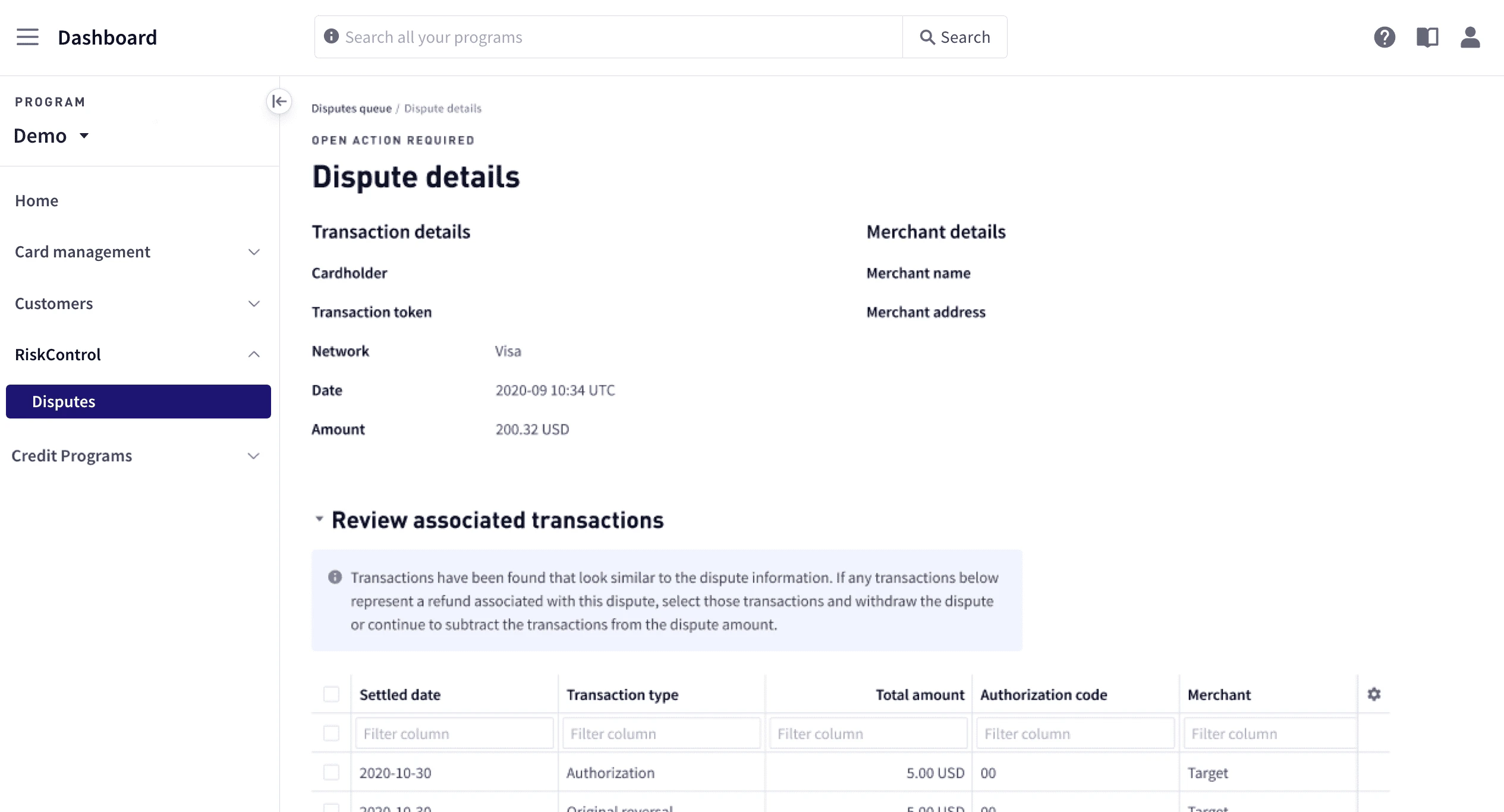 Select any associated transactions. Scroll down to view additional transactions, if necessary.
If any transactions in the list represent a refund associated with this dispute, select those transactions and select **Withdraw and close** to withdraw those disputes.
If there are no associated transactions, select **These transactions are not associated**.
If the transaction type is **credit**, provide any useful information in **Explanation of credit**.
Select any associated transactions. Scroll down to view additional transactions, if necessary.
If any transactions in the list represent a refund associated with this dispute, select those transactions and select **Withdraw and close** to withdraw those disputes.
If there are no associated transactions, select **These transactions are not associated**.
If the transaction type is **credit**, provide any useful information in **Explanation of credit**.
Upload required documentation
Upload any documents related to the case. If a case is submitted without the required documentation, the case could be lost. If a non-Visa method of payment was used, upload documents detailing payment by other means such as a bank statement, canceled check, or receipt.
To upload documents:
In **Dispute details**, select **Upload related documents**.
For each document, select **Upload** and locate the document. An image of each uploaded document is displayed.
Confirm case details
In this step, confirm case details and get the case ready to submit to the card network. Specify any details that were not specified, incomplete, or incorrect, including the means of payment with sufficient transaction details to allow the merchant to locate the transaction.
To confirm the case details:
In **Dispute Details**, select **Confirm dispute details**, and enter or edit the details as appropriate.
For any duplicate transactions, choose the reason for the duplication:
* Same merchant on the same card
* Same merchant on a different Visa card owned by the same issuer/cardholder
* Same merchant, but paid by other means
For partial disputes—that is, if the disputed amount less than the transaction amount—ensure that relevant documents are loaded and enter the disputed amount.
Select **Mark as ready**.
Respond to a prearbitration request
Prearbitration allows the cardholder and the merchant to provide further information about the dispute. It also allows the cardholder to submit a second dispute if the initial dispute was rejected. You can accept liability or submit a response. For additional details, see [Prearbitration](/developer-guides/about-disputes/#_prearbitration).
To accept liability:
In **Dashboard > Disputes**, select the dispute.
In the **Backend resolution** tab, select **Accept liability** to accept the liability and submit your response.
To submit a response:
In **Dashboard > Disputes**, select the dispute.
In the **Backend resolution** tab, select **Respond to prearbitration**.
In the **Prearbitration response** dropdown pane, enter the details of your response.
Select **Attach files** and upload any related files pertinent to the prearbitration.
Select **Submit prearbitration response**.
Submit the case to the card network
For a case that is in a Ready state, you can send it to the card network by choosing **Submit to network** in the upper-right corner.
You can also submit a case from the Dispute Queue:
Select **Dashboard** in the upper-left corner, then select **RiskControl > Disputes** from the sidebar.
Select the vertical ellipsis icon at the right of the row, and choose **Submit to network**.
If updates are not syncing correctly with the card network, then this dispute can be converted to a non-integrated case.
Close the case
Once you have received a decision from the card network and the case is resolved, you can close the case. To close the case, select **Close case**.
Reopening a case
If a case has been closed but needs to be reopened. To reopen a case:
Select **Dashboard** in the upper-left corner, then select **RiskControl > Disputes** from the sidebar.
From the vertical ellipsis at the right the dispute row, select **Reopen case**.
Granting provisional credit
When you create a dispute, if provisional credit is applicable, the provisional credit status is displayed at the top of the work area. In addition to the status, the dashboard provides a message describing the action required and a link to perform the action. Provisional status can be:
| Status | Description |
| ----------- | ---------------------------------------------------------------------------------------------------------------------------------------------------------------------------------------------------------------------------------- |
| Not granted | The provisional credit has not been granted. |
| Granted | The provisional credit was granted. |
| Permanent | The provisional credit has been made permanent. If the 45-day time limit to resolve a case expires, the provisional credit is made permanent, with funds transferred from the program funding source, and the case is written off. |
If provisional credit is required but has not been granted, **Provisional credit status** with the number of days remaining to issue the credit and a link to issue the credit are displayed at the top of the work area:
`You have 10 days left to grant a provisional credit for this case. Click here to issue`
To issue the provisional credit:
Select **Click here to issue**. A message similar to the following is displayed:\
`You are about to issue a \$300 USD provisional credit for this case. Ensure that the credit amount is correct.`
Select **Confirm**.\
The following message is displayed:\
`You are about to submit the case to the card network. Ensure that all information provided is correct before submitting. Transition note (optional)`
Select **Submit**. The status is changed to **Granted**.
The 45-day time limit to resolve this case has expired. The provisional credit will be made permanent, with funds transferred from the program funding source.
Viewing the chargeback report
You can view a chargeback report in the Marqeta Dashboard Reports area. To access the report:
Select **Dashboard** in the upper-left corner, then select **Reports** from the sidebar.
Select the **Risk Monitoring — Chargebacks** report.
The dashboard allows you to customize your report to include multiple data fields related to the status of your disputes. For more about viewing reports, see [Reports](/developer-guides/reports-dashboard/).
Dispute reasons and codes
The available dispute reasons and reason codes are given below per card network:
| Dispute Reason | Reason Codes |
| --------------------------------------------- | ------------------------------- |
| EMV liability shift counterfeit fraud | Visa 10.1 |
| EMV liability shift non counterfeit fraud | Visa 10.2 |
| Not authorized card present | Visa 10.3, Mast 4837, Disc 4537 |
| Not authorized card absent | Visa 10.4, Mast 4837, Disc 4868 |
| No authorization | Visa 11.3, Mast 4808 |
| Late presentment | Visa 12.1, Disc 4542 |
| Incorrect transaction code | Visa 12.2, Mast 4846 |
| Incorrect currency | Visa 12.3 |
| Incorrect account number | Visa 12.4 |
| Incorrect transaction amount | Visa 12.5 |
| Duplicate Processing/Paid by Other Means | Visa 12.6 |
| Service not provided merchandise not received | Visa 13.1, Disc 4555 |
| Cancelled recurring transaction | Visa 13.2, Disc 4541 |
| Credit not processed | Visa 13.6, Disc 4560 |
| Cancelled services | Visa 13.7 |
| Non receipt of cash | Visa 13.9, Mast 4859, Disc 4590 |
| Other disputes | N/A |
Reporting fraud
The Visa network requires issuers and programs to report fraud to the card network regardless of the amount. Whenever a cardholder reports fraud, a subsequent fraud report must be created with the card network. Noncompliance with network rules results in fines and suspension of the ability to process chargebacks.
Ways to report fraud
The following are ways you can report fraud:
* Create a fraud report for one specific instance using the Marqeta Dashboard as described below in [Reporting fraud individually](#_reporting_fraud_individually).
* Create fraud reports for a set of transactions within a network using bulk upload as described below in [Reporting fraud in bulk](#_reporting_fraud_in_bulk).
* For the Visa network, initiate a chargeback.
For all chargebacks initiated with a fraud reason code, the Cases system automatically files a fraud report with Visa.
Fraud types
Here are Visa guidelines for selecting the correct fraud type for reporting:
| Fraud Type | Description |
| -------------------------------- | -------------------------------------------------------------------------------------------------------------------------------------------------------------------------------------------------------------------------------------------------------------------------------------------------------------------------------------------------------------------------------------------------------------------------------------------------------------------------------------------------------------------------------------------------------------------------------------------------------------------------------------------------------------------------------------------------------------------- |
| Lost | The cardholder is not in possession of the card and does not know what happened to it. |
| Stolen | The cardholder is not in possession of the card and does not know what happened to it. |
| Card not received as issued | The card was mailed but not received by the cardholder. |
| Fraud application | The account was opened based on the true name or synthetic cardholder information. |
| Issuer report counterfeit | The cardholder is in possession of the card. Card present transactions have occurred that were not made by the cardholder. |
| Miscellaneous | Cannot be categorized under another Fraud type, such as but not limited to:
- Multiple draft imprints obtained unlawfully from a legitimate card.
- Unauthorized alterations to a sales draft. |
| Fraudulent use of account number | The account number was used in the non-face-to-face environment (Card Not Present) including mail order, telephone order, recurring payments, installments, and eCommerce (internet) transactions. |
| Incorrect processing | Fraudulent transaction was made possible due to incorrect processing. This type identifies situations in which inadequate validation of a security element was the factor that enabled fraud to occur. For example:
- Fraudulent EMV transaction resulting from a lack of cryptogram validation.
- Vulnerabilities in the implementation of EMV may allow a perpetrator to use a chip card with fake cryptograms.
- Fraudulent transaction on a magnetic stripe transaction resulting from lack of Card Verification Value (CVV) validation. |
| Account or credential takeover | Fraud resulted from the perpetrator taking over an account or credentials from a legitimate client. For example:
- Use of personally identifiable information (PII) to circumvent the issuer’s authentication process or cardholder’s stolen credentials for requesting a new bank-issued card for fraudulent use.
- Fraudulent use of card data and PII to circumvent the issuer’s authentication process and enable provisioning of the payment card onto a mobile device or digital wallet, which is subsequently used for fraudulent purchases.
- Fraudulent use of the cardholder’s digital wallet via stolen user credentials (for example, mobile passcode or wallet login information). |
| Merchant misrepresentation | Fraud resulting from a merchant deliberately misleading the account holder. For example:
- A merchant fraudulently selling items that are not as they seem or substandard, charging more than anticipated or for a longer term.
- A merchant charging for a service that the consumer can get for free through another channel for the purpose of conducting fraudulent activity. |
| Manipulation of account holder | Fraud resulting from a merchant manipulating an account holder into completing what they believe to be a legitimate transaction. This fraud type has been added to support Visa Direct and European PSD2 regulations. For example:
- The account holder was manipulated into sending funds to a fraudulent beneficiary when the sender believed they would gain fictitious riches or help an individual in distress, a struggling business, or to pay medical fees.
- A perpetrator contacted the sender to impersonate a known supplier, trusted organization, or business in order to request a change of payment details for a transaction or to request a payment to a fraudulent account. |
Reporting fraud individually
To report fraud in bulk from the Marqeta Dashboard:
Select **Dashboard** in the upper-left corner, then select **RiskControl > Disputes** from the sidebar.
Select **Create manual case**, enter the token for the transaction you would like to dispute, and select **Continue**.
Select **Fraud Report** if you are only reporting fraud and not creating chargeback.
From the **Fraud type** dropdown, select the type of fraud you are reporting. See [Fraud types](#_fraud_types).
In the **Notes** text box, enter any freeform text as needed.
Select **Create** to submit the report to Visa. Once the fraud report is submitted to Visa, Marqeta automatically closes the case.
Reporting fraud in bulk
With bulk uploads you can upload multiple fraud cases using a bulk file in `.xlxs` format that contains the information for each fraud case. Because records in a bulk file must conform to exact file formatting, using bulk uploads may require additional maintenance.
**Note**\
Only Visa fraud disputes can be submitted in bulk.
To submit dispute cases in bulk:
* Download the template.
* Create the bulk upload file.
* Create the object rows.
* Upload the file.
* View the failure report.
Each of these steps is described in detail in the following sections.
Download the template
To download the template:
In **Dashboard > RiskControl > Disputes**, select **Bulk upload**.
Under **.xlsx templates**, select **Fraud report**.
Create the bulk upload file
Using the template, create and populate your upload file. When naming your upload files, avoid special characters and spaces in the filename. Use unique filenames. You cannot upload the same file with the same name multiple times.
Include only Fraud disputes in the file. For each dispute, include the clearing transaction token in the `TRANSACTION_TOKEN` field. All fields are required. Smaller files result in faster upload times. The file must include the following fields:
| Field | Description |
| -------------------- | ------------------------------------------------------------------------------------------------------------------------- |
| TRANSACTION\_TOKEN | Original transaction token. This must be the token from a cleared (settled) transaction, not an authorization token. |
| DISPUTE\_AMOUNT | Amount disputed.
**Note:** Do not include any special characters such as a currency symbol.
Format: 00.00 |
| REASON\_CODE | Use `FRAUD_REPORT`. |
| FRAUD\_TYPE | The type of fraud detected. See Fraud types. |
| PROGRAM\_SHORT\_CODE | Your program short code. |
Upload the file
To upload the bulk file:
In **Dashboard > RiskControl > Disputes > Bulk upload**, select **Browse** and choose a bulk upload file that conforms to the `.xlxs` template.
Select **Upload**. The upload process may take several minutes.
If an **Unable to upload file** error message appears during the upload process, wait a few minutes then try again.
Rejection from the Visa network for Compelling Evidence 3.0-enabled merchants
If the merchant is enabled for compelling evidence 3.0, and there are at least two historic transactions that meet the Remedy Prior Undisputed transaction criteria, rejection from the card network can happen at two points in the dispute workflow:
* Pre-dispute
* Post-dispute
For additional details, see [Rejection from the Visa network](/developer-guides/managing-visa-disputes/#_rejection_from_the_visa_network_for_compelling_evidence_3_0_enabled_merchants) in Managing Visa Disputes.
Pre-dispute rejects
If a rejection happens in this case, you will see one of the following errors when you attempt to initiate the dispute with the card network. These disputes move to `Open Action Required`.
| Error Code | Message | Meaning and Expected User Action |
| ----------- | -------------------------------------------------------------------------------------------------------------------------------------------------------------------------------------------------------------------------------------------------------------------- | -------------------------------------------------------------------------------------------------------------------------------------------------------------------------------------------------------------------------------------------------------------------------------------------------------------------------------------------------------------------------------------------------------------------------------------------------------------------------------------------------------------------------------------------------------------------------------- |
| E-900003544 | Dispute is invalid as prior transactions were detected for this merchant with the same data elements (IP Address, Device ID, etc.). Neither of these transactions were reported as fraud activity to Visa. This transaction will not be counted as a fraud activity. | Remedy Prior Undisputed Transactions conditions have been met—that is, the merchant has signed up for Remedy Prior Undisputed transactions and there are at least two historical transactions (120-365 days old), which establishes the undisputed transaction history between the merchant and the cardholder.
There are no dispute rights on this transaction. You can mark these disputes as Program Write-off, or Case Lost. If you have enough evidence that the dispute was rejected incorrectly, you can request an exception review, with an additional fee. |
| E-900003545 | This dispute is still processing and please resubmit. | Indicates that the merchant has signed up for Compelling Evidence 3.0 and Visa is attempting to retrieve the Compelling Evidence 3.0 data from the merchant.
You can attempt to resubmit these disputes after a brief waiting period. |
| E-900003543 | Dispute is invalid as it was qualified under the Visa Remedy criteria. This transaction will not be counted as a fraud activity. | Appears if you attempt to raise a 10.4 dispute against a transaction that already had a fraud dispute reject due to Compelling Evidence 3.0 (E-900003544). The chargeback cannot be initiated with the card network. |
Post-dispute rejects
Merchants can provide Compelling Evidence 3.0 data during prearbitration of a 10.4 dispute. In this case, the dashboard displays the prearbitration reason as RE (Remedy Prior Undisputed transaction), along with historic data that establishes undisputed transaction history between the merchant and the cardholder. You can either accept liability or respond to the prearbitration after reviewing the Compelling Evidence 3.0 data. If you decline prearbitration, sufficient evidence should be provided to dispute the Compelling Evidence 3.0 data.
## Related topics
- [Credit in the Marqeta Dashboard](/docs/developer-guides/credit-dashboard.md)
- [Home in the Marqeta Dashboard](/docs/developer-guides/home-dashboard.md)
- [Reports in the Marqeta Dashboard](/docs/developer-guides/reports-dashboard.md)
- [Transaction Details in the Marqeta Dashboard](/docs/developer-guides/transaction-details-dashboard.md)
- [Managing Cards in the Marqeta Dashboard](/docs/developer-guides/cards-dashboard.md)