> ## Documentation Index
> Fetch the complete documentation index at: https://www.marqeta.com/docs/llms.txt
> Use this file to discover all available pages before exploring further.
# Finding and Organizing Cases
> Filter and search for dispute cases across programs in the Disputes portal, and save your most-used filters as custom views.
The Disputes portal enables you to filter and locate the cases you need, and to save your most-used filters.
This guide covers filtering cases, searching across programs, and saving filters as reusable custom views.
Filtering your cases
Before you build a filter, choose the scope you want to work in from the dropdown in the top right of the **Home** page:
* **All Programs** — View cases across every program.
* **Single Program** — Focus on one specific program.
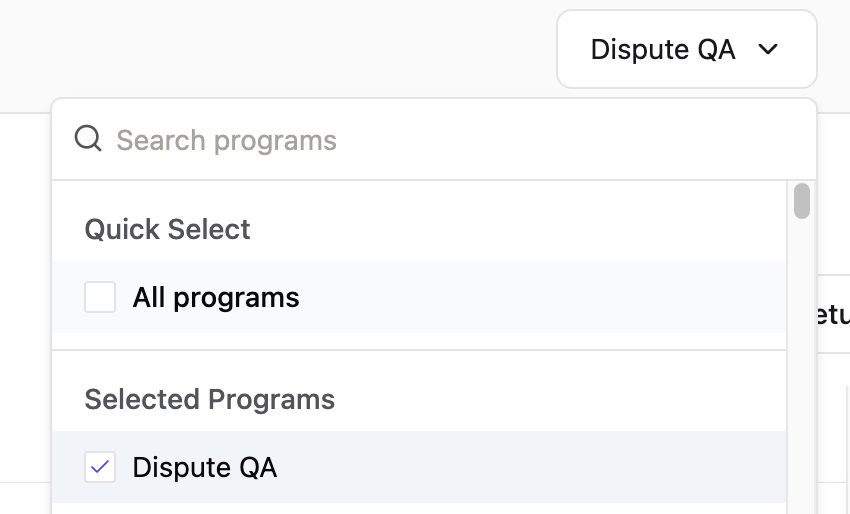 Once you've set the scope, select your filter criteria and click **Apply** to see the matching cases.
You can filter by attributes, including but not limited to:
* **Case state** — Filter by where cases currently are in the lifecycle, such as open, in review, or closed.
* **Dispute reason** — Filter by the card network reason code assigned to the dispute.
* **Regulation** — Filter by the regulatory framework governing the dispute.
To make the results more useful, customize the column headers to display the information that's relevant to your workflow.
Once you've set the scope, select your filter criteria and click **Apply** to see the matching cases.
You can filter by attributes, including but not limited to:
* **Case state** — Filter by where cases currently are in the lifecycle, such as open, in review, or closed.
* **Dispute reason** — Filter by the card network reason code assigned to the dispute.
* **Regulation** — Filter by the regulatory framework governing the dispute.
To make the results more useful, customize the column headers to display the information that's relevant to your workflow.
Searching across programs
The Disputes portal supports cross-program search, allowing you to find cases across all programs without switching scope.
You can search by token directly from the **All Programs** view.
Search by transaction token
Use the transaction token from a completed transaction to find its dispute case:
Click **All Programs** from the scope dropdown.
Paste the transaction token in the search bar.
Press **Enter**.
Select the case token that appears in the results.
The case opens in the **Dispute Lifecycle** tab.
Search by case token
Use the case token to open a case directly:
Click **All Programs** or the specific program for your case from the scope dropdown.
Paste the case token in the search bar.
Press **Enter**.
Select the case token from the results.
The case opens in the **Dispute Lifecycle** tab.
Filtering and saving custom views
If you rely on the same filters regularly, save them as a custom view so you don't have to rebuild them each time.
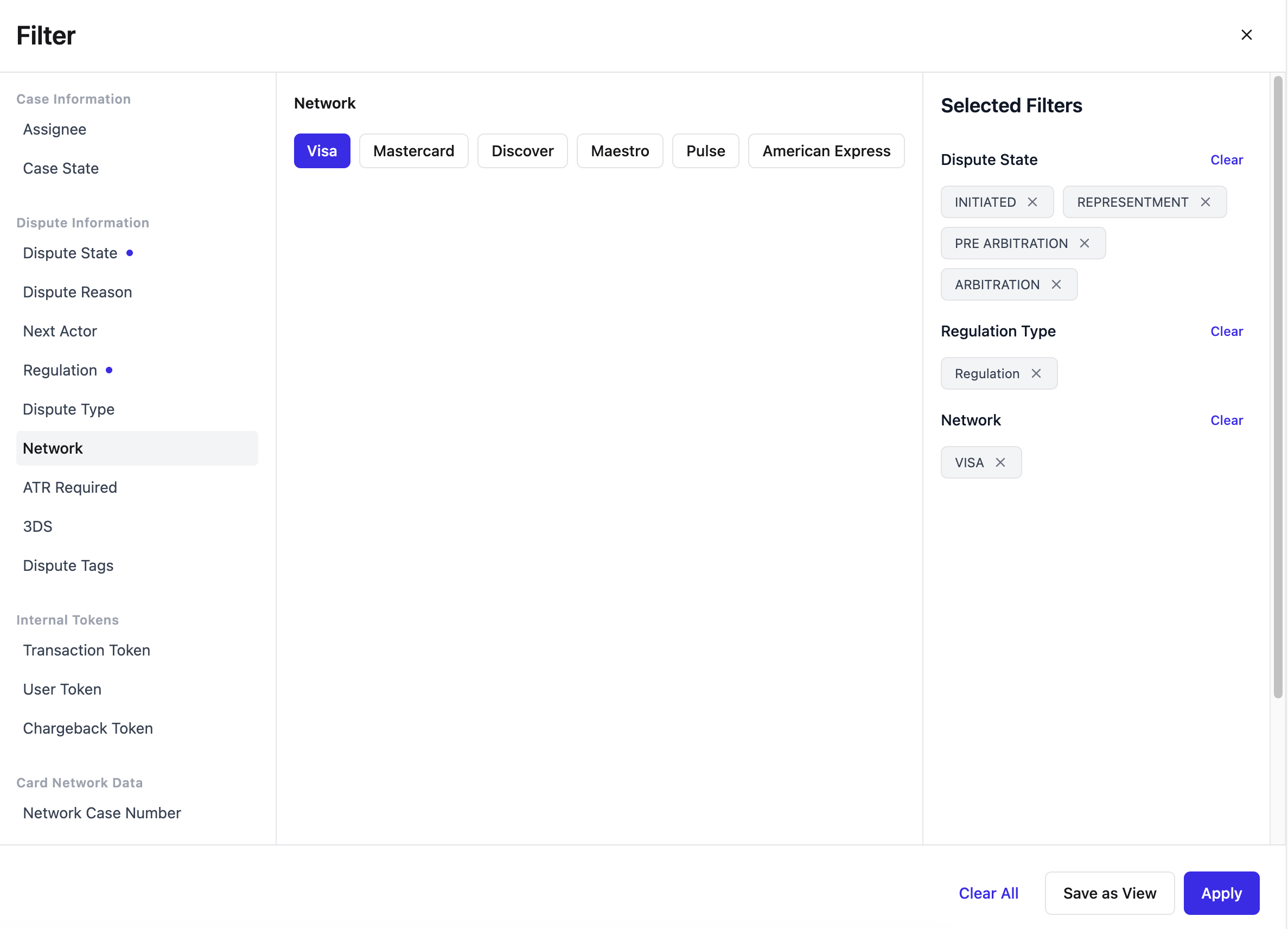 In the main case view, click either **All Programs** or the specific program for your case.
Click **Filter**.
Select the attributes you want to filter for, such as case state, dispute reason, or regulation.
Click **Apply** to preview the results.
Click **Save as View**.
Under **Visibility**, choose the **Agent** option.
Give the view a descriptive name.
Select an icon to help identify it visually.
Click **Save**.
You'll find all your saved views under **All Cases** > **Views**.
Each saved view can display its own set of column headers, so you can tailor the columns to the purpose of each view.
In the main case view, click either **All Programs** or the specific program for your case.
Click **Filter**.
Select the attributes you want to filter for, such as case state, dispute reason, or regulation.
Click **Apply** to preview the results.
Click **Save as View**.
Under **Visibility**, choose the **Agent** option.
Give the view a descriptive name.
Select an icon to help identify it visually.
Click **Save**.
You'll find all your saved views under **All Cases** > **Views**.
Each saved view can display its own set of column headers, so you can tailor the columns to the purpose of each view.
Best practices
A few habits make finding and organizing work faster:
* **Filter before you search.** Narrow results by case state, dispute reason, or regulation before doing a token search.
* **Combine column filters.** Typing criteria into multiple columns narrows results quickly.
* **Name views clearly.** Descriptive names and distinct icons make the right view easy to spot.
* **Save frequently used filters.** Don't rebuild the same filters repeatedly.
* **Keep tokens handy.** Saving transaction and case tokens gives you quick access back to a case.
* **Use cross-program search.** When you're not sure which program a case belongs to, search from the **All Programs** view.
## Related topics
- [About the Disputes Portal](/docs/developer-guides/about-disputes-portal.md)
- [Creating a Dispute](/docs/developer-guides/disputes-portal-create.md)
- [Working Within a Case](/docs/developer-guides/disputes-portal-working-within-a-case.md)
- [About Reporting](/docs/developer-guides/about-reporting.md)
- [Transitioning Cases](/docs/developer-guides/disputes-portal-transitioning-and-closing.md)