> ## Documentation Index
> Fetch the complete documentation index at: https://www.marqeta.com/docs/llms.txt
> Use this file to discover all available pages before exploring further.
# Reports in the Marqeta Dashboard
> Reports in the Marqeta Dashboard enable you to explore your card program data.
Marqeta is migrating dispute management to the new Disputes portal. To learn about the Disputes portal, see [About the Disputes Portal](/developer-guides/about-disputes-portal).
The [Marqeta Dashboard](https://app.marqeta.com/) provides reports for exploring your card program data. The Dashboard includes tools for dynamic filtering, sorting, and interactive visualizations. The reports use the same data endpoints that you can access through the DiVA API. For a complete list and for more information on the DiVA API endpoints, see the [DiVA API Reference](/diva-api/introduction/).
In Reports, you can:
* Retrieve data using filters.
* Download data in CSV format and, for large amounts of data, with Gzip compression.
* Add visualizations to reports to enhance data presentation.
* Define periodic reports using relative date filters on saved reports.
* Generate your user tokens to access the DiVA API.
The basics
To access Reports, go to the [Marqeta Dashboard](https://app.marqeta.com/), select **Data & Insights** in the upper-left corner, then select **Reports** in the sidebar. The following figure shows Reports:
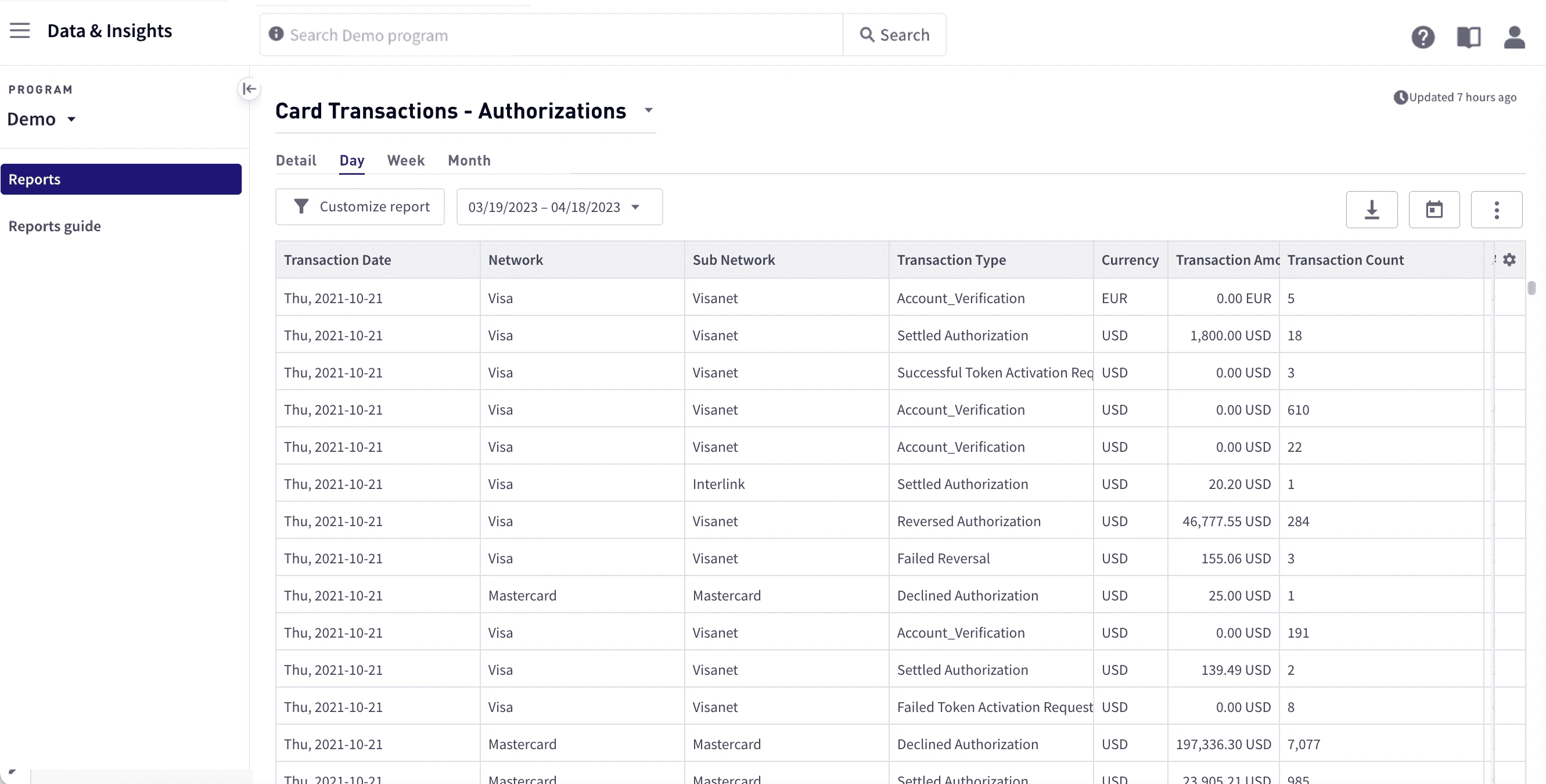 To start exploring your data, use the dropdown list at the top of the page to select a report and the controls displayed above the report view area. You can view data in tables, and then visualize the data graphically by creating charts and graphs. You can use filters to refine the view and save reports.
Data sync times
Report data, such as clearing and settlement data, is synchronized three times each day. For specific times, see [Expected refresh and settlement timelines](/developer-guides/reports-in-depth/#_expected_refresh_and_settlement_timelines).
How to…
* View a report
* Manage the number of retrieved rows
* Filter data
* Create a visualization
* Create DiVA API access tokens
Report types
You can view the following report types:
Balance
**Balance reports** give you detailed information on cardholder balances, such as starting and ending balances and chargebacks.
| Report | Description |
| ------------------------ | ----------------------------------------------------------------------------------------------------------------------------------------------------------------------------------------------------------------------------------------------------------------------------------------------------------------------------------------------------------------------------------------------------------------------------------------------------------------------------------------------------- |
| Overview | Provides key aggregated program data, such as loads, purchases, and chargebacks.
- The **Day** report provides a daily snapshot of a program’s activity.
- The **Amount to Send** report provides a simple view of the amount to send, which is used to move funds between the program funding account and the cardholder account for the prior day’s activity.
For details, see Overview in Reports In-depth. |
| Network Detail | Provides key aggregated program data for the day, similar to the Balance - Overview report, organized by relevant network. For details, see Network Detail in Reports In-depth. |
| Program Funding Balances | (Limited Access) Provides a daily aggregated view of a program’s funding balance using an authorization funding model. For details, see Program Funding Balances in Reports In-depth. |
Card transactions
**Card transaction reports** provide details on card transactions derived from the transaction-related messages sent to and from the Marqeta platform.
| Report | Description |
| ---------------------- | -------------------------------------------------------------------------------------------------------------------------------------------------------------------------------------------------------------------------------------------------------------------------------------------------------------------------------------------------------------------------------------------------------------------------------------------------------------------------------------------------------------------------------------------------------------------------------------------------------------------------------------------------------------------------------------------------------------------------------------------------------------------------------------------------------------------------------------------------------------------------------------------------------------------------------------------------------------------------------------------------------------------------------------------------------------------------------------------------------------------------------------------------------------------------------------------------------------------------- |
| Authorizations | Provides aggregated and detailed views of authorized transaction messages as part of the overall flow of a particular transaction. For details, see Authorizations in Reports In-depth. |
| Settlements | Provides aggregated and detailed views of cleared transactions. For details, see Settlements in Reports In-depth.
**Clearing Detail** highlights cleared transactions. A single clearing transaction message, identified by the Transaction Token, is represented over several rows, with one row for each accounting layer. There are typically three Transentry Token entries for every Transaction Token, with an entry for purchase, cross-border fees, and currency conversion fees. The accounting layer for each entry is identified by the Account Group column.
Each record includes an Initiating Transaction Token value, which corresponds to the initial authorization record. The corresponding initial authorization record can be found in the Authorizations Detail report by filtering for a Transaction Token that matches the Initiating Transaction Token value for the clearing record.
**Settlements Detail** retrieves settlement transaction data at a specified aggregation level. For example, if you choose the detail aggregation level, each row represents a single settlement transaction. |
| Declines | Provides aggregated and detailed views of declined transactions as part of the overall flow of a particular transaction. For details, see Declines in Reports In-depth. |
| Loads | Provides aggregated and detailed views of cardholder loads to enable transaction processing. Loads provide a view of the cycle for an individual transaction. For details, see Loads in Reports In-depth. |
| Network Reconciliation | Provides final cleared numbers in an aggregated view. This report is different from a Settlements report in its construction and ability to view different components. |
Other transactions
**Other transactions reports** give you detailed information about transactions other than card transactions, including ACH, bill payments, and direct deposit.
| Report | Description |
| --------------- | -------------------------------------------------------------------------------------------------------------------------------------------------------------------------------------------------------------------------------------------------------------------------------------------------------------------------------------------------------------------------------------------------------------------------------------------------------------------------------------------------------------------------------------------------------------------------------------------------------------------------------------------------------------- |
| ACH | Provide details on ACH activity:
\* ACH Gateway Detail – Provides details on ACH gateway activity. For details, see ACH Gateway in Reports In-depth.
\* ACH Pending Detail – Provides details on pending ACH gateway activity. For details, see ACH Pending in Reports In-depth.
\* ACH Verification Detail – Provides verification details on ACH gateway activity. For details, see ACH Verification in Reports In-depth. |
| Bill Payments | Provides details on bill payments, such as bill payment status and user information. For details, see Bill Payments in Reports In-depth. |
| Direct Deposit | Provides details on direct deposits, such as bank information and processor state. For details, see Direct Deposit in Reports In-depth. |
| ACH Origination | Provides transaction-level detail for ACH Origination transfers for both Program Funding and User Funding use cases. For details, see ACH Origination in Reports In-depth. |
Credit
**Credit reports** give you detailed information about your credit programs, including information on credit accounts, cards, disputes, ledgers, payments, and current statements.
| Report | Description |
| --------------------------- | -------------------------------------------------------------------------------------------------------------------------------------------------------------------------------------------------------------------------------------------------------------------------------------------------------------------------------------------------------------------------------------------------------------------------------------------------------------------------------------------------------------------------------------------------- |
| Account Adjustments | Provides details on adjustments made to the credit accounts in a program, including the adjusted amount, reason, and date the adjustment was made. For details, see Account Adjustments in Reports In-depth. |
| Account Adjustments Monthly | Provides adjustments data for all the credit accounts for a month in a program. For details, see Account Adjustments Monthly in Reports In-depth. |
| Account Details | Provides details on all of the credit accounts in a program. This report includes intra-monthly balance calculations attached to each account, including purchases, interest, fees, credits, and payments, which are updated whenever an activity occurs that might affect the ledger. For details, see Account Details in Reports In-depth. |
| Account Daily Balances | Provides details on daily balances, including principal, interest, fees, and payment allocations. For details, see Account Daily Balances in Reports In-depth. |
| Account Cards | Provides detailed information for the cards in a program, such as the current card state, product, and creation and end dates. For details, see Account Cards in Reports In-depth. |
| Disputes | Provides dispute details of all dispute activity for the credit accounts in a program. For details, see Disputes in Reports In-depth. |
| Disputes Monthly | Provides dispute data by month for all credit accounts in a program. This report provides an aggregated sum of all disputes grouped by account and status (`WON`, `LOST`, or `REVERSED`). Active disputes are skipped. For example, if an account has three disputes, with two won and one lost, two records are returned—one record with the sum of all disputes won, and the other with the sum of all disputes lost. For details, see Disputes Monthly in Reports In-depth. |
| Journal Entries | Provides details of all journal entries for all credit accounts in a program, such as the status and amount. For details, see Journal Entries in Reports In-depth. |
| Payments | Provides payment details for all the credit accounts in a program, such as payment method, interest, and fees. For details, see Payments in Reports In-depth. |
| Rewards | Provides a rewards detail for all the credit accounts in a program. For details, see Rewards in Reports In-depth. |
| Rewards Monthly | Provides a sum of all credit account rewards for a given month grouped by account token. For details, see Rewards Monthly in Reports In-depth. |
| Statements | Provides a statements summary for credit accounts. This report is an amalgamation of Credit’s Statement Summary, Statement Payment Info, and Statement Year-to-date. Each entry in this report encapsulates the data that is associated with an account for these three statements. For details, see Statements in Reports In-depth. |
Program stats
**Program stats reports** give you detailed information about your card programs, such as when a card was created and activated.
| Report | Description |
| ------ | --------------------------------------------------------------------------------------------------------------------------------------------------------------------------------------------------------------------------------------------------------------- |
| Cards | Provides detailed information at the card level. For details, see Cards in Reports In-depth. |
| Users | Provides detailed information at the user level. A user corresponds to a profile within the Marqeta platform, but does not necessarily imply a cardholder. For details, see Users in Reports In-depth. |
Risk monitoring
**Risk monitoring reports** give you information on risk, such as chargebacks and KYC. For details, see [Risk monitoring](/developer-guides/reports-in-depth/#_risk_monitoring) in Reports In-depth.
| Report | Description |
| ----------- | ---------------------------------------------------------------------------------------------------------------------------------- |
| Chargebacks | Provides a detailed view of various chargebacks filed for a program, as well as the status and state of any particular chargeback. |
System
**System reports** give you information on system health and performance. For details, see [System](/developer-guides/reports-in-depth/#_system) in Reports In-depth.
| Report | Description |
| ----------------- | -------------------------------------------------------------------------- |
| Platform Response | Provides a monthly average duration and gateway duration for transactions. |
Utilities
**Utilities reports** provide information on the data dictionary, which describes the data for each of the columns. For details, see [Utilities](/developer-guides/reports-in-depth/#_utilities) in Reports In-depth.
| Report | Description |
| -------------------------- | --------------------------------------------------------------------------------------------------------------------------------------------------------- |
| Core API Transaction Token | Provides a lookup between the Reports Transaction Token and the Core API Transaction Token, which is derived from a webhook associated with the Core API. |
| Data Dictionary | Provides information on the data dictionary, which describes the data for each of the columns in reports. |
Data Products & Insights
**Data Products & Insights** provides several reports for improving the customer experience for your cardholders. These reports include Bank Files, Authorization and Clearing Comparison Detail, and Quarterly Network Reports. For more information, see [Data Products and Insights](/developer-guides/data-products-and-insights/).
RiskControl Real-Time Decisioning
**RiskControl Real-Time Decisioning reports** provide information on Real-Time Decisioning behavior. For details, see [RiskControl Real-Time Decisioning](/developer-guides/reports-in-depth/#_riskcontrol_real_time_decisioning) in Reports In-depth.
| Report | Description |
| -------------------------- | ---------------------------------------------------------------------------------------------------------------------------------------------------------------------------------------------------------------------------------------------------- |
| Authorizations | Provides information on all the transaction authorizations processed by Real-Time Decisioning, including Transaction Token, Acting User Token, User Token, Card Token, Amount, Risk Score, Risk Level, Recommended Action, Rule Violation, and Tags. |
| Transaction Count by Rules | Provides information on the count of transactions per triggered rule for a program. |
Which reports to use
Curious which report to use for a particular process? The table below summarizes some of the main reporting needs that are addressed and the report to use for each.
| To Do This… | Use This Report |
| --------------------------------------------- | ----------------------------------------------------------------------------------------------------------------------------------------------------------------------------------------------------------------------------------------------------------------------------------------------------------------------------------------------------------------------------------------------------------------------------------------------------------------------------------------------------------------------------------------------------------------------------------- |
| Reconcile financial transactions | Use either the **Balance > Program Funding Balances > Prefunded - Day** or the **Card Transactions > Settlements** reports. The **Amount to Send**, **Deposit**, and **Partner Funds Loads Net** columns in the **Prefunded — Day** report are key indicators of program activity. Ask your Marqeta representative if you have questions about which data points are appropriate for your program. |
| Monitor program funding balances and deposits | Use the **Balance > Program Funding Balances > Prefunded - Day** report. The incoming/posted deposits information can be found in the `Deposit` field.
All funds received in the Program Funding account by 9:00 PM UTC are posted to the Marqeta system by 12:00 AM UTC. All deposits for the day are entered as a single amount. The deposit information posted is available at the completion of the Afternoon data run. For details on the data run, see Expected data refresh times. |
| Monitor program performance and growth | Several reports are available, including:
- **Balance > Overview > Day**
- **Card Transactions > Settlements > Day**, **Week**, or **Month**
- **Card Transactions > Authorizations > Day**, **Week**, or **Month**
Use the Visualization Controls to graphically view your data. |
| Monitor declined transactions | Use the **Card Transactions > Declines** report. This report is available in a **Detail** view, or aggregated in **Daily**, **Weekly**, or **Monthly** views. |
| View chargeback details or status | Use the **Risk Monitoring > Chargebacks** report. Use the **Detail** view to see details of the submitted chargebacks, or the **Status** view to see the status of current chargebacks. |
| Review user and card demographics | Use the **Program Stats > Cards > Detail** report and the **Program Stats > Users > Detail** report. |
Accessing reports
Reports are grouped by report type. To access a report:
Select **Data & Insights** in the upper-left corner, then select **Reports** in the sidebar.
From the dropdown list at the top, select a report.
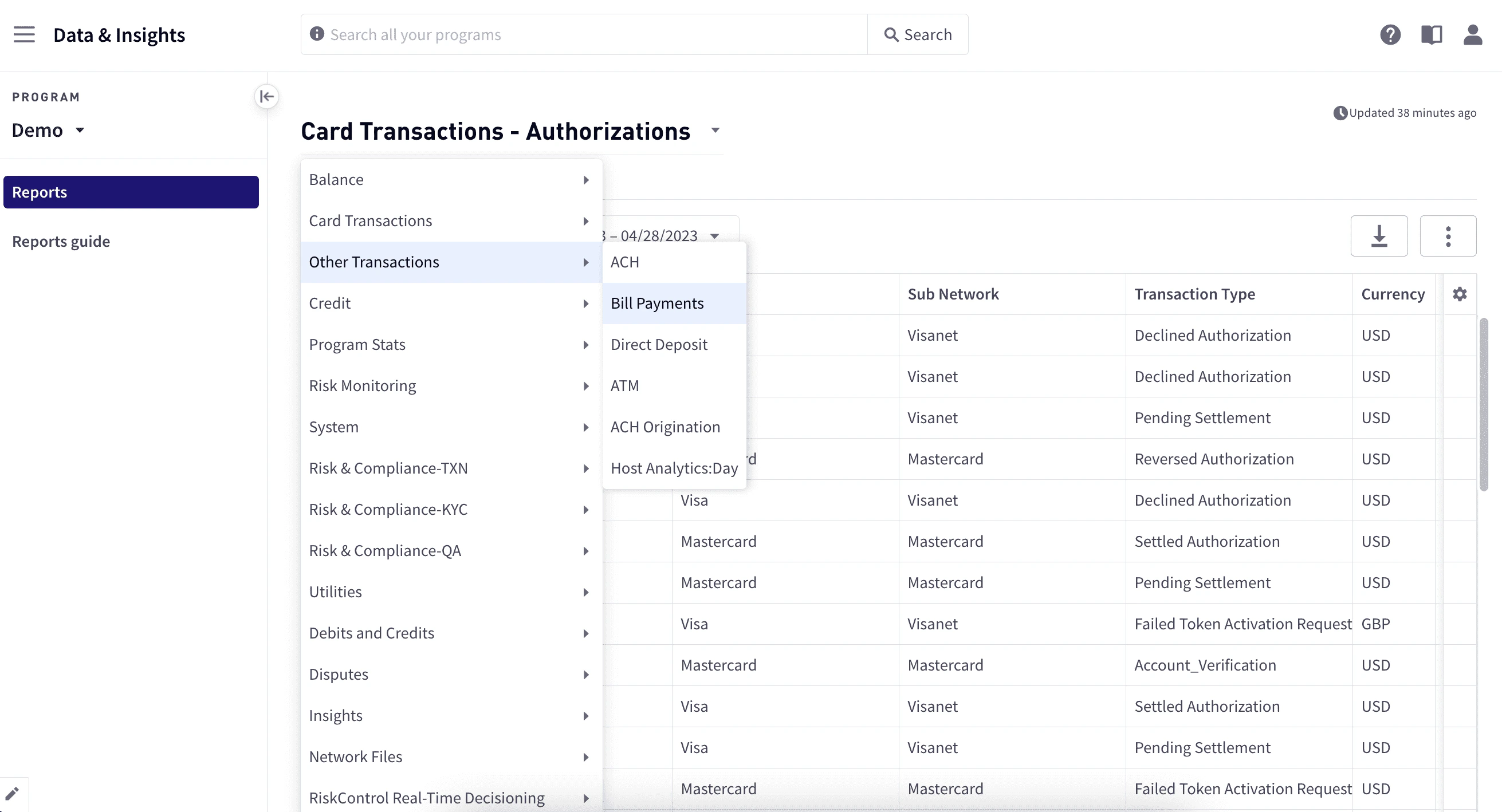 After you select a report, the data is exposed and the filtering and visualization tools become available.
To cancel a report in progress, select the **Cancel request** button.
After you select a report, the data is exposed and the filtering and visualization tools become available.
To cancel a report in progress, select the **Cancel request** button.
Viewing data
Use filters, sorting, grouping, and visualizations to uncover whatever data points you want to explore. You can download data to work with it offline or to save your custom reports for future access.
Data freshness indicator
The Data Freshness Indicator provides up-to-date information on when your data was last updated, enabling you to begin your workflows with the certainty that all recent data has been loaded. Basic load information is displayed in the upper-right corner. Hover the pointer over the Clock icon to view a tooltip that includes additional details. The information is presented in your local time zone:
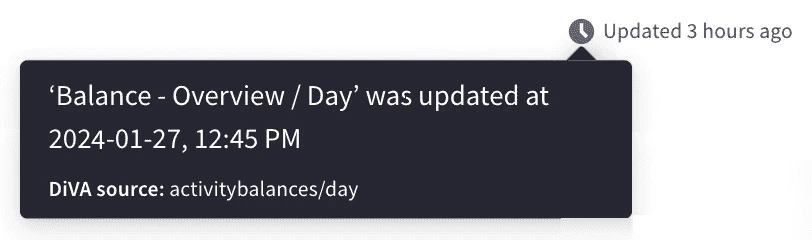 For programs that do not have daily activity, the Data Freshness Indicator shows when the last report run was completed, even if no new data is presented.
Exposed and data views
Because the amount of data exposed through the user interface can be unwieldy, two view types are provided to help you work with the data:
* **Exposed view** – This is initially set at 10,000 rows with the option to add rows in increments of 100,000.
* **Data view** – The complete set of records for the fully specified table build.
Only a subset of data is exposed when working with visualizations. If you want to access the complete data view, you can download up to 1,046,576 rows.
Managing the number of retrieved rows
The default number of rows retrieved when you open a report is 10,000. To retrieve the next 100,000 rows, select **Get more data** at the bottom of the report view area. Because the dataset may be too large to practically load into your browser, you can download the full dataset:
* At the upper-right of the report view area, select the **Download Current Report** button. The complete set of records in the data view is downloaded in Gzip compression format. The dataset may take some time to generate before the download begins.
Working with the exposed view
When you open a report, the exposed view shows a subset of the columns for the underlying data view, as well as a subset of the data. You can interact with the data by using quick filters, by sorting and reordering columns, or by adding and removing columns.
Managing columns
To include or exclude columns or to rearrange the column order:
Select **Modify columns** from the gear icon in the upper-right corner to open the **Customize Columns** dialog box.
To define which columns should appear in the report, select or clear the checkbox for the columns to include or exclude. To select or deselect all columns, use **Select all** or **Remove all**.
To reorder the columns, drag them up or down to their new positions.
Select **Save**.
Customizing a report
You can customize a report by filtering or sorting the data, or by creating a pivot table to group the data. You can filter by date or use operators to filter by specific columns. Customizing a report allows you to work with the entire data view, applying to the entire underlying data view; however, only the exposed view is returned and displayed.
To customize a report:
To modify the columns to include, see [Managing columns](#_managing_columns).
Select **Customize report** in the upper left of the view area.
In the **Customize report** panel, choose the programs to include in the **Program selector** box.
To apply filters:
* Under **Filter** select a column, select a relational operator to use, then enter a value. See [Relational operator behavior](/developer-guides/reports-dashboard/#_relational_operator_behavior).
* To add more filters, repeat the above step.
* To remove a filter, select the **x** to the right of the filter or **Clear all** to remove them all.
To sort the report by column values, select the column under **Sort** and the direction, **ASC** or **DESC**. To remove the sort, select **Clear all**.
To group your data by defining a pivot table:
* Under **Pivot table** select **Activate pivot table**.
* Select **Add group** and choose the column. To add additional columns, repeat this step.
* To remove a grouping, select the **x** to the right of the filter or select **Clear all** to remove them all.
Select **Apply**.
To return to the default view, select **Reset table to default** from the gear icon in the upper left of the view area.
To filter by date:
Select the calendar box at the upper left.
Select a data range either by selecting one of the preset date ranges, or by selecting a start and end date.
Select **Apply**.
To return to the default view, select **Reset table to default** using the gear icon.
Relational operator behavior
Filter behavior for relational operators depends on the type of information for the selected column:
| Field Type | Options |
| ---------- | ----------------------------------------------------------------------------------------------------------------------------------------------------------------------------------------------------------------------------------------------------------------------------------------------------------------------------------------------------------------------------------------------------------- |
| String | Use the tilde (`\~`) as a wildcard at the beginning or end of a value. For example, "ba\~" matches both "bar" and "basket". You can also apply a filter list using commas to separate the values. For example, "= California, New York, Ohio" returns only those states in the result; "!= California, New York, Ohio" returns all states except those. |
| Date | Enter dates in yyyy-mm-dd format. For example, to specify November 1, 2023, enter "2023-11-01". Use the `<`, `<+`, `=`, `⇒`, `>` operators to filter dates before, after, or equal to the given date. Use two dots (`..`) to specify a range of dates. For example, "2023-09-01..2023-09-07" filters dates between September 1, 2023 and September 7, 2023. Only the `=` operator is valid for date ranges. |
| Number | Use standard mathematical operators to filter numeric values. Use two dots (`..`) to specify a range of numbers. For example, specifying "100..110" filters values between 100 and 110, inclusive. Only the `=` operator is valid for number ranges. |
Saving reports
To save a report:
Select **Save Current Report**.
Enter a report name.
Select **Save**.
Saved reports are available under **Saved Reports** in [Home](/developer-guides/home-dashboard/).
Visualizations
Visualizations help you understand your data. Using visualizations, you can create charts based on the data you have retrieved and include them in a report. The available options depend on the visualization type. Note that visualizations apply to the exposed view of your data.
Visualization types
The following visualizations are available:
| Type | Description |
| ------------ | ------------------------------------------------------------------------------------------------------------------ |
| Line chart | Shows data trends over time as a series of data points connected by straight line segments. |
| Bar chart | Presents data using rectangular bars that are proportional to the values that they represent. |
| Scatter plot | Displays values for two variables as a collection of points, showing how much one variable is affected by another. |
Line chart
A **line chart** displays information as a series of data points connected by straight line segments. A line chart is most frequently used to show trends and analyze how data has changed over time. Typically, the y-axis displays a quantitative value, and the x-axis provides a timescale or a sequence of intervals.
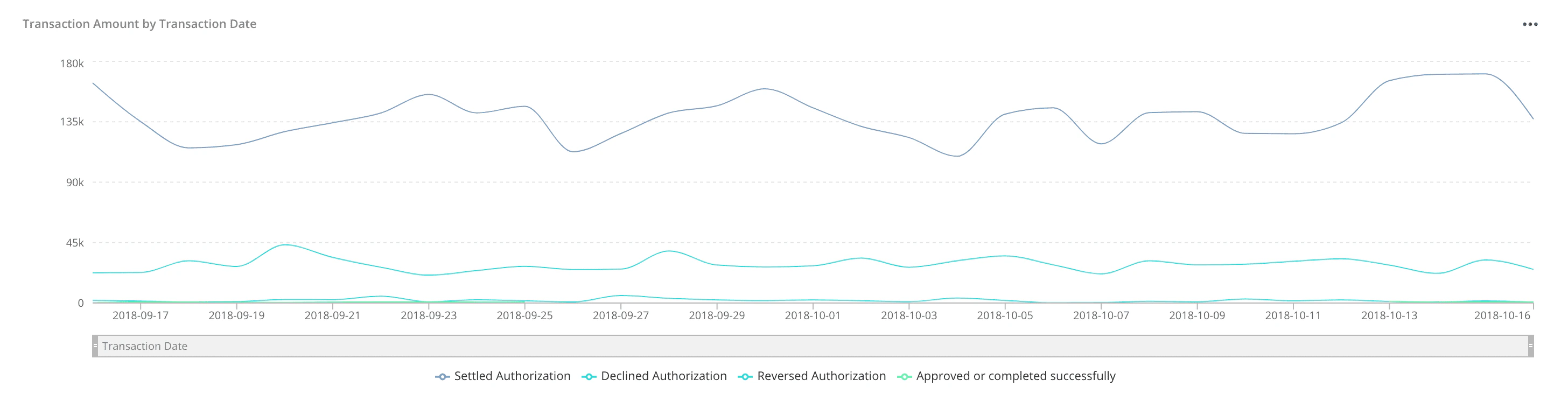 The following are line chart options:
| Option | Details |
| ---------- | ----------------------------------------------------------------------------------------------------------------------------------------------------------------------------------------------------------------------------------------------------------- |
| X-Axis | The column to display along the x-axis. Only date columns are available as x-axis options. |
| Y-Axis | The column to display along the y-axis. Only number columns are available as y-axis options. Select one or more. |
| Cumulative | Allows values to accumulate so that a value shown is the total of the base value and the sum of all previous values. Use a cumulative line chart when you have one grouping that represents an ordered set of data and one value to show, summed over time. |
| Multi-Line | Displays multiple lines for a selected column, based on the Dimensions and Lines options you specify. Selecting this option displays the Dimensions and Lines options. |
| Dimension | If Multi-Line is selected, the column to display along the y-axis. |
| Lines | If Multi-Line is selected, the groups to include within the selected dimension. |
To add a line chart:
Retrieve the data you want to include.
Select **Visualization Controls** and select **Line Chart**. The most likely columns are displayed in the initial graph.
Select **···** in the upper-right corner of the chart and select the options.
To save the chart, select **Save**.
The following are line chart options:
| Option | Details |
| ---------- | ----------------------------------------------------------------------------------------------------------------------------------------------------------------------------------------------------------------------------------------------------------- |
| X-Axis | The column to display along the x-axis. Only date columns are available as x-axis options. |
| Y-Axis | The column to display along the y-axis. Only number columns are available as y-axis options. Select one or more. |
| Cumulative | Allows values to accumulate so that a value shown is the total of the base value and the sum of all previous values. Use a cumulative line chart when you have one grouping that represents an ordered set of data and one value to show, summed over time. |
| Multi-Line | Displays multiple lines for a selected column, based on the Dimensions and Lines options you specify. Selecting this option displays the Dimensions and Lines options. |
| Dimension | If Multi-Line is selected, the column to display along the y-axis. |
| Lines | If Multi-Line is selected, the groups to include within the selected dimension. |
To add a line chart:
Retrieve the data you want to include.
Select **Visualization Controls** and select **Line Chart**. The most likely columns are displayed in the initial graph.
Select **···** in the upper-right corner of the chart and select the options.
To save the chart, select **Save**.
Bar chart
A **bar chart** presents data using rectangular bars that are proportional to the values that they represent. A bar chart can be used to compare changes over a period of time for more than one group.
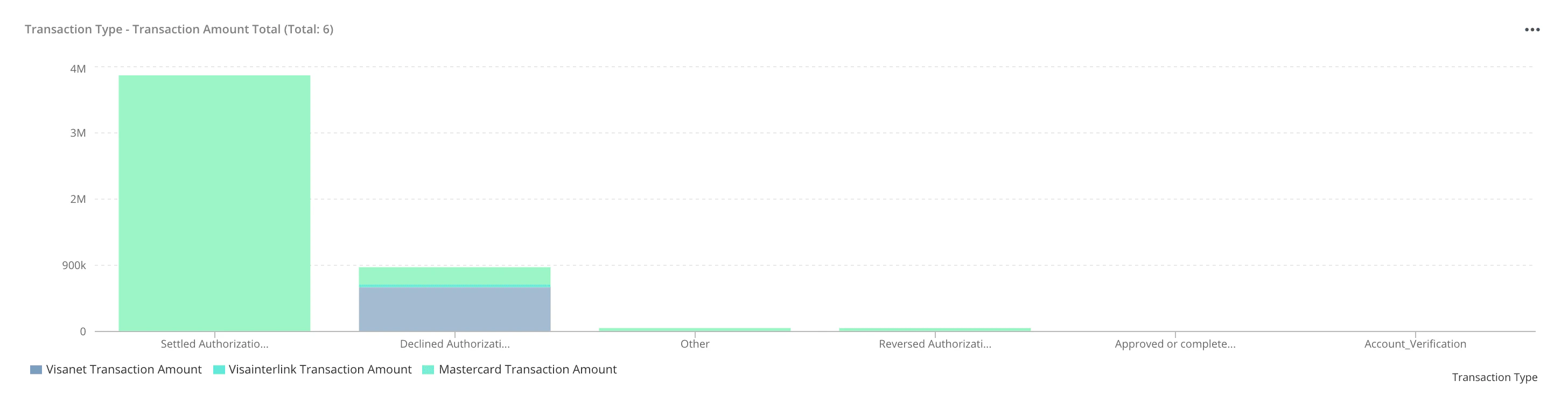 The following are bar chart options:
| Option | Details |
| ---------------- | ----------------------------------------------------------------------------------------------------------------------------------------------------------------------------------------------------------------------------------------------------------------------------------------------------------------------------------------------------------------------------------------------------------------------------------------------------------------------------------------------------------------------------------------------------------------------------------------------------------------------------------------------------------------------------------- |
| Dimensions | The column data to display on the x-axis. |
| Bars | The column to display in bars along the y-axis. Select one or more columns. |
| Sort | The order in which to display the bars along the x-axis.
The following are bar chart options:
| Option | Details |
| ---------------- | ----------------------------------------------------------------------------------------------------------------------------------------------------------------------------------------------------------------------------------------------------------------------------------------------------------------------------------------------------------------------------------------------------------------------------------------------------------------------------------------------------------------------------------------------------------------------------------------------------------------------------------------------------------------------------------- |
| Dimensions | The column data to display on the x-axis. |
| Bars | The column to display in bars along the y-axis. Select one or more columns. |
| Sort | The order in which to display the bars along the x-axis.
- **Type** - Value or Dimension. Value sorts the display by value; dimension sorts by group name.
- **Direction** - The order in which to display the bars along the x-axis: `DESC` or `ASC`. |
| Max Bars | The maximum number of bars to display. To change, edit the value under Max (number). |
| Y-Axis Functions | Applies functions to alter the information displayed to make the trends more easily identifiable in visualizations:
- **y** - Returns to the original display, removing any functions.
- **-1\*y** - Flips the y values on the chart so that negative values are displayed as positive values above the x-axis. Useful for the display of negative values in a more readable format.
- **log(y)** - Reduces the y values logarithmically to make the trend easier to see in the chart.
- **e^y** - Increases the y values logarithmically to make the trend easier to see in the chart.
- **abs(y)** - Displays the absolute value along the y-axis. |
| Stacked Bars | Overlays the selected y-axis columns into a single bar. Select to display the Stacked Bar Options:
- **Dimensions** - The columns to report on.
- **Sub Bars** - The columns to stack together into a bar. |
To add a bar chart:
Retrieve the data you want to include.
Select **Visualization Controls** and select **Bar Chart**.
In the upper-right corner of the visualization, select **···** and then select the options.
Select **Save**.
Scatter plot
A **scatter plot** displays values as a collection of points, where the value of one variable determines the position on the x-axis and the value of the other variable determines the position on the y-axis. A scatter plot shows how much one variable is affected by another. The relationship between the two variables is called their *correlation*.
A scatter plot is useful when:
* You have paired numerical data.
* Your dependent variable has multiple values for each value of your independent variable.
* You want to determine whether two variables are related.
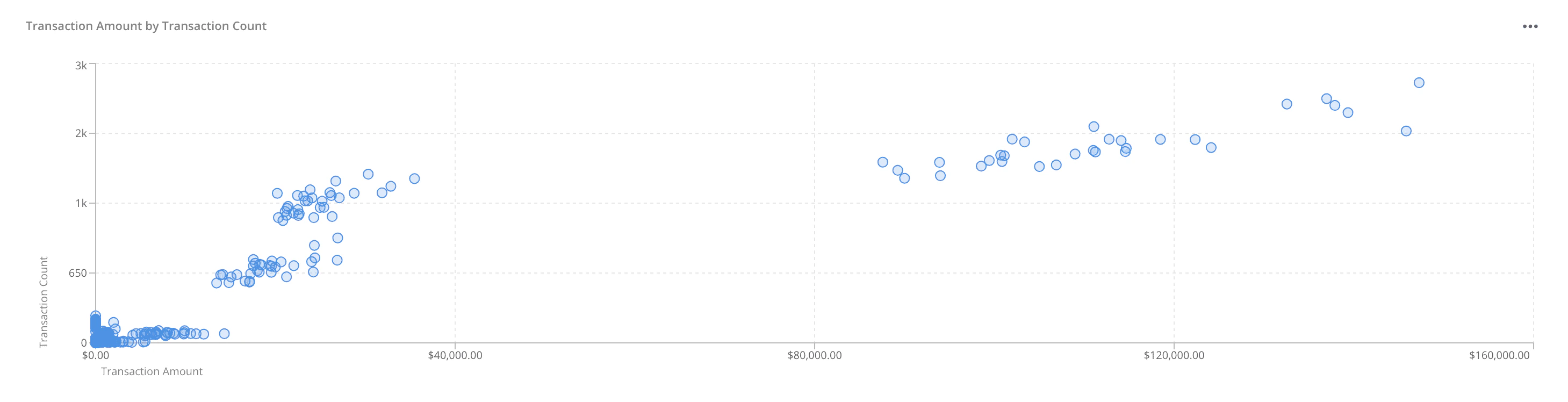 A scatter plot can be useful for gaining insight into certain kinds of problems, especially to determine whether a particular cause and effect are related or whether two effects that appear to be related both have the same cause.
Adding a scatter plot
To add a scatter plot:
Retrieve the data you want to explore.
Select **Visualization Controls** and select **Scatter Plot**. Only number columns are available for both the x-axis and y-axis. The default columns to display in the graph are the first two active numerical columns.
To change the columns to display in the graph, select **···** in the upper-right corner of the chart and select the columns for each axis. You can choose only one column for each axis.
Downsampling
Downsampling reduces the amount of noise from the display by combining points that are similar into a single point.
After you display the scatter plot, draw a box around the area to downsample. When you are finished downsampling, select **Filtered** to remove the Downsample filter.
Creating your DiVA API access tokens
Reports in the Marqeta Dashboard accesses the same data endpoints as the DiVA API. Using the Dashboard, you can generate your DiVA API access tokens to use when making API calls. You will have the same permission level as you have in the Dashboard.
To generate your access tokens:
In the upper-right corner, select your username and choose **DiVA API access**.
On the API Access page, select **Generate Token** in the upper-right corner.
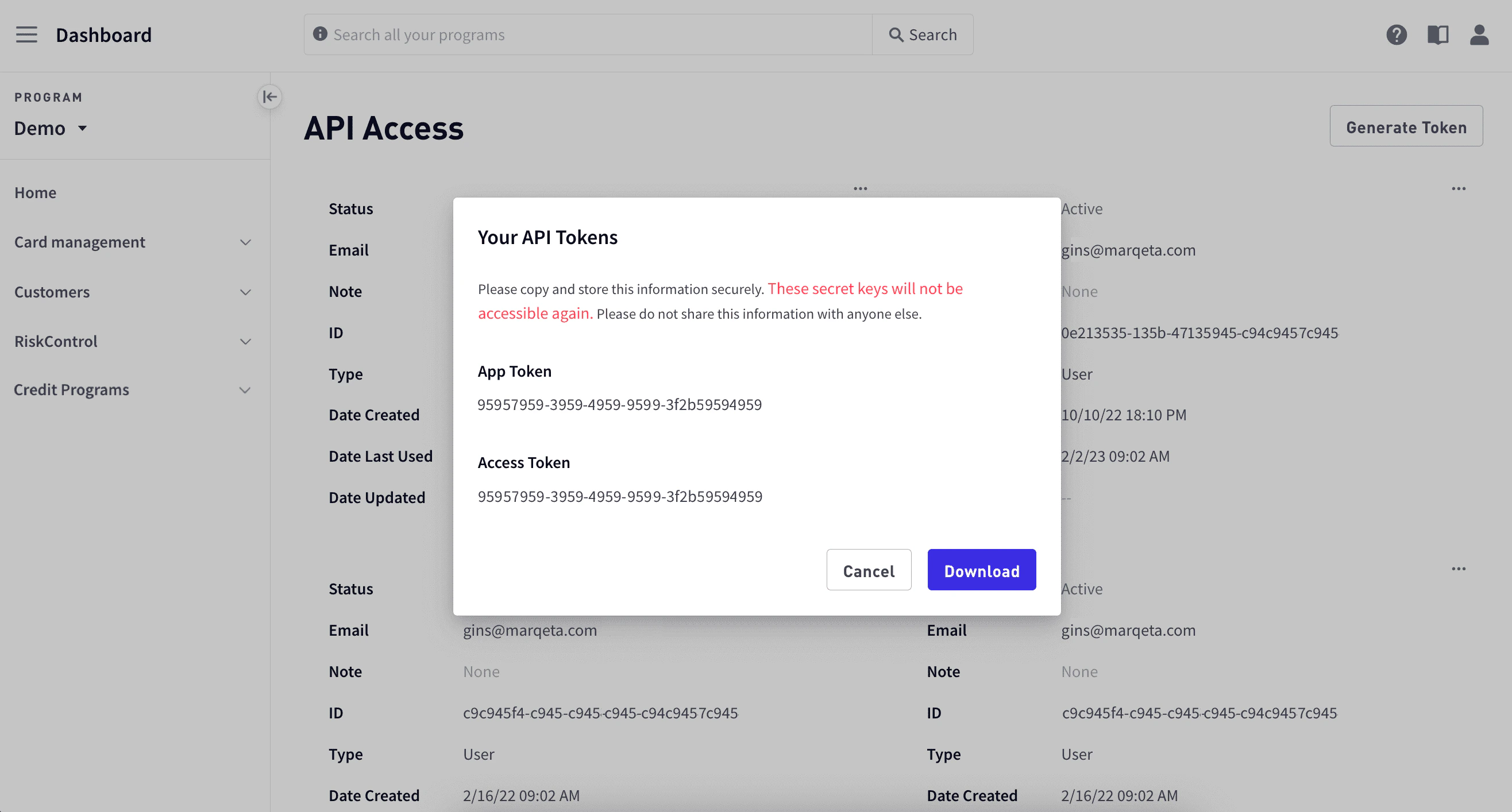
In the **Add a Note** popup window, enter a note you want to associate with your access tokens, and select **Generate**. After DiVA generates your access tokens, the API Tokens popup window appears and displays your tokens.
Select **Download** to save your tokens.
You can view and copy your user tokens at any time from the API Access page.
 ## Related topics
- [Home in the Marqeta Dashboard](/docs/developer-guides/home-dashboard.md)
- [Disputes in the Marqeta Dashboard](/docs/developer-guides/disputes-dashboard.md)
- [Managing Cards in the Marqeta Dashboard](/docs/developer-guides/cards-dashboard.md)
- [Managing User Profiles in the Marqeta Dashboard](/docs/developer-guides/user-profiles-dashboard.md)
- [Managing Customers in the Marqeta Dashboard](/docs/developer-guides/customers-dashboard.md)
## Related topics
- [Home in the Marqeta Dashboard](/docs/developer-guides/home-dashboard.md)
- [Disputes in the Marqeta Dashboard](/docs/developer-guides/disputes-dashboard.md)
- [Managing Cards in the Marqeta Dashboard](/docs/developer-guides/cards-dashboard.md)
- [Managing User Profiles in the Marqeta Dashboard](/docs/developer-guides/user-profiles-dashboard.md)
- [Managing Customers in the Marqeta Dashboard](/docs/developer-guides/customers-dashboard.md)